Workday Write
In this article
Overview
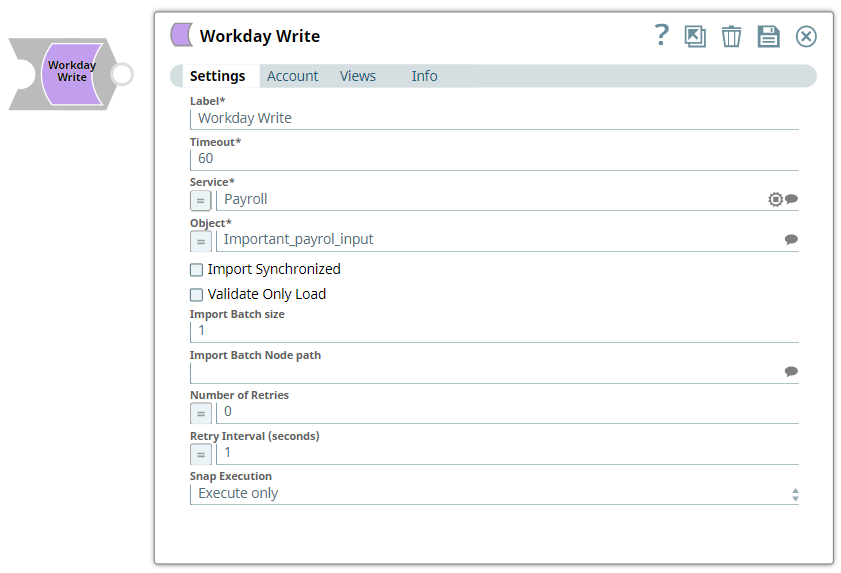
Workday Write Snap is a Write-type Snap that you can use to write objects into Workday based on the input document field values that match the Workday object schema field names as defined by the Workday Web Service Definition Language (WSDL). The object becomes suggestible once the account is defined. The fields that can be set on the object are provided on the input view of the Snap and can be mapped using an upstream Mapper Snap.
Learn more about Workday objects: Workday (SOAP), and Workday ( REST)
ETL Transformations & Data Flow
This Snap enables the following ETL operations/flows:
- Transform SnapLogic input document data to Workday SOAP XML request
- Load data into Workday
This Snap creates a SOAP request based upon the Workday Write object input schema and the input data passed into the Snap. The Snap then submits the SOAP request to Workday and converts the Workday SOAP XML response to JSON in the output view.
- The Snap collects the user account information, the Workday service, and object input for the Workday server to process.
- The Snap transforms the input document data matching the Workday input schema to create and submit a SOAP request.
- On successful Workday server response, the Snap converts the returned SOAP XML response into JSON for the output view.
- If there is an exception, the Snap writes an error to the output view.
Prerequisites
- You must have a Workday Account, data to query, and Workday security access to the objects. Contact your organization's Workday Security Administrator for proper access.
- Workday recommends using an Integration System User (Most commonly known as ISU) for use with APIs.
Support and limitations
Works in Ultra Tasks.
Snap Views
| Type | Format | Number of Views | Examples of Upstream and Downstream Snaps | Description |
|---|---|---|---|---|
| Input | Document | Min: 1 Max: 1 |
| The document conforms to the input view schema of the Snap. The input view schema is provided to an upstream Mapper Snap based on the selected service object. |
| Output | Document | Min: 1 Max: 1 |
| Each record is represented as one document on the output view. The document represents the record structure of the retrieved Workday service object. |
| Error | Error handling is a generic way to handle errors without losing data or failing the Snap execution. You can handle the errors that the Snap might encounter while running the Pipeline by choosing one of the following options from the When errors occur list under the Views tab. The available options are:
Learn more about Error handling in Pipelines. | |||
Settings
Asterisk (*): Indicates a mandatory field.
Suggestion icon (:Suggestible_icon: ): Indicates a list that is dynamically populated based on the configuration.
Expression icon (:Expression_icon:): Indicates whether the value is an expression (if enabled) or a static value (if disabled). Learn more about Using Expressions in SnapLogic.
Add icon (:Add_Fieldset_Row: ): Indicates that you can add fields in the field set.
Remove icon (:Remove_icon:): Indicates that you can remove fields from the field set.
| Field | Description |
|---|---|
Label* | The name for the Snap. You can modify this to be more specific, especially if you have more than one of the same Snap in your Pipeline. |
| Timeout | Defines the timeout value for each Workday SOAP request. A value of 0 means no timeout. Default Value: 60 |
| Service | The service to be used. Though all available services are selectable, only Resource_Management, Revenue_Management, Financial_Management, Integrations, Cash_Management may have objects that provide cancellations. Default Value: [None] |
| Object* | The object to write. The field is suggestible once the account is defined. The objects will be suggested based on the selected service, such as selecting the service Payroll will retrieve all objects for Payroll that are retrievable from Workday. Default Value: [None] |
| Import Synchronized | Select this checkbox to use synchronous import. In a synchronized import, the current import request must complete before the next request can be initiated. In an asynchronous import, the next import request can be initiated immediately upon current request submission. Default Value: Not selected |
| Validate Only Load | Select this check box while working with import objects. This enables the Snap to upload processed data for validation without importing it into the endpoint. Once an authorized user review and validates the uploaded data, deselect this check box and execute the Pipeline to update the actual records in the endpoint. Select this check box only when working with import objects. Default Value: Not selected |
| Import Batch size | The number of documents to be batched together as a single request. This also requires "Import Batch Node path" property.(This is only for Import_ objects and doesn't affect other objects) Default Value: 1 |
| Import Batch Node path | The node path of the soap message under which the documents need to be batched. The suggested option accesses schema on its input view or through an upstream reference. This is applicable to Import objects only and does not affect the other objects. Default Value: N/A |
| Number of Retries | Enter the integer value to specify the number of attempts the snap should make to perform the selected operation in case of connection failure or timeout. Minimum value: 0 Default Value: 0 |
| Retry Intervals (seconds) | Enter the time interval in seconds between retry attempts. Minimum value: 1 Default Value: 1 |
Snap Execution | Loading |
Troubleshooting
Ensure that the capitalization of the keys in the input document matches the capitalization of the WSDL elements. If the upstream source does not use the same case for some reason, a Mapper can be used to handle the conversion as a workaround.
| Error | Reason | Resolution |
|---|---|---|
HTTP/1.1 407 Proxy Authentication required. | The Snap is unable to tunnel through proxy. | Add the following key-value pair values to your Groundplex configuration and restart the plex to reflect the changes. Key: |
Typical Snap Configurations
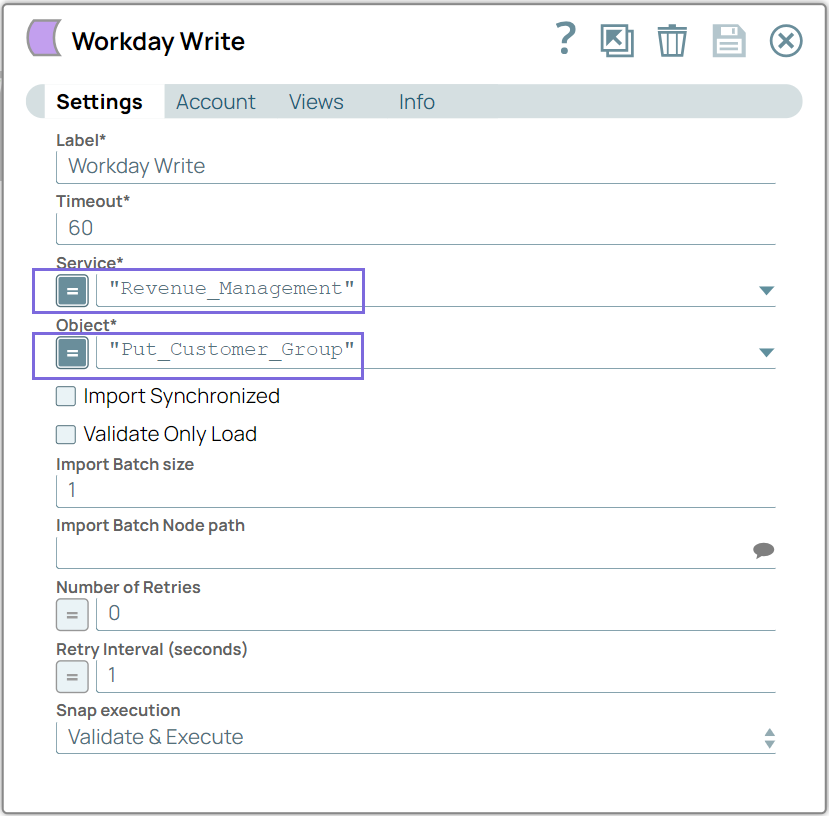
The key configuration of the Snap lies in how the statements are passed to write the Workday objects. As it applies in SnapLogic, the statements can be passed in the following manner:
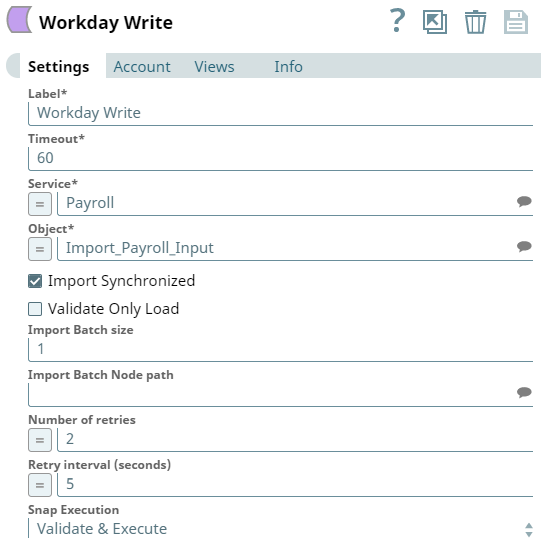
| Without Expression | |
In this pipeline, the Workday Write Snap writes the objects from a specified Object. | |
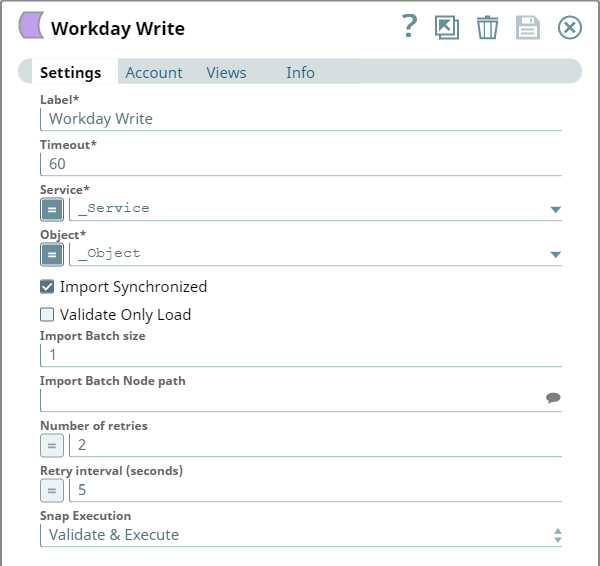
| With Expression | |
 |
|
Examples
The below examples demonstrate how the Snap functions in a Pipeline:
You must have a Workday Account, and Workday writes security access to the objects in the following examples.
This pipeline shows how the Workday Write Snap supports the import objects.
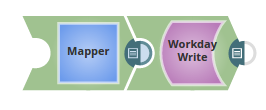
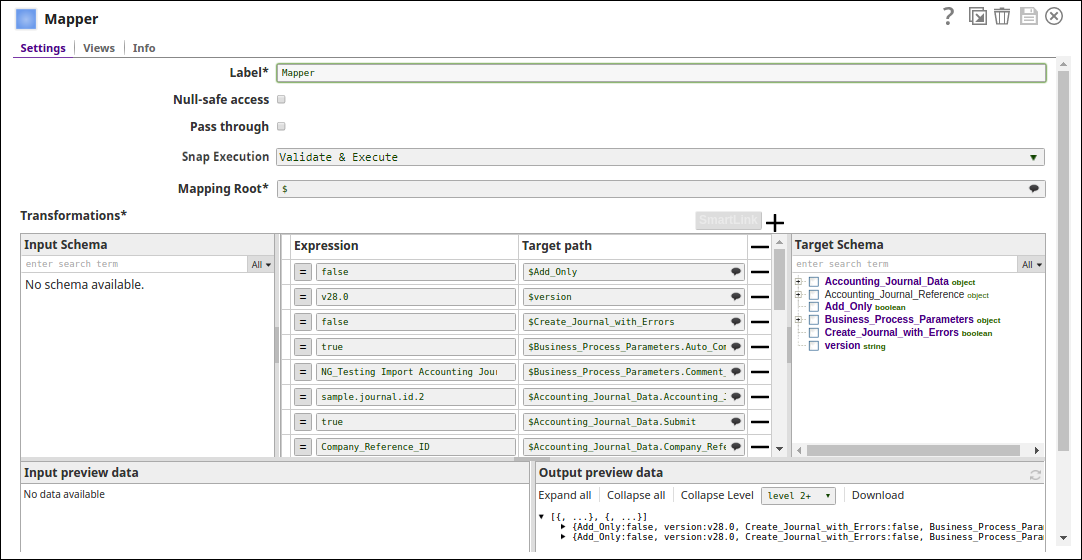
In this pipeline, the Mapper Snap passes the values to be configured under various parameters for the Object, Import_Accounting_Journal.
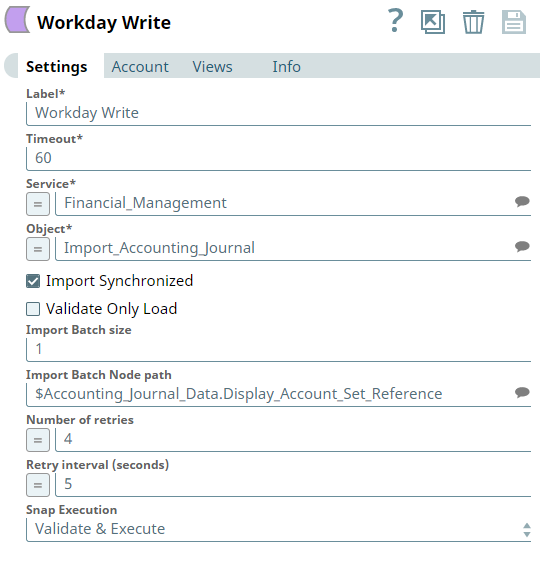
The Workday Write Snap writes the data from the object, Import_Accounting_Journal. Note the Import Synchronized property is selected with an import batch size of 1. The import Batch node suggests the path under which the documents need to be batched under.
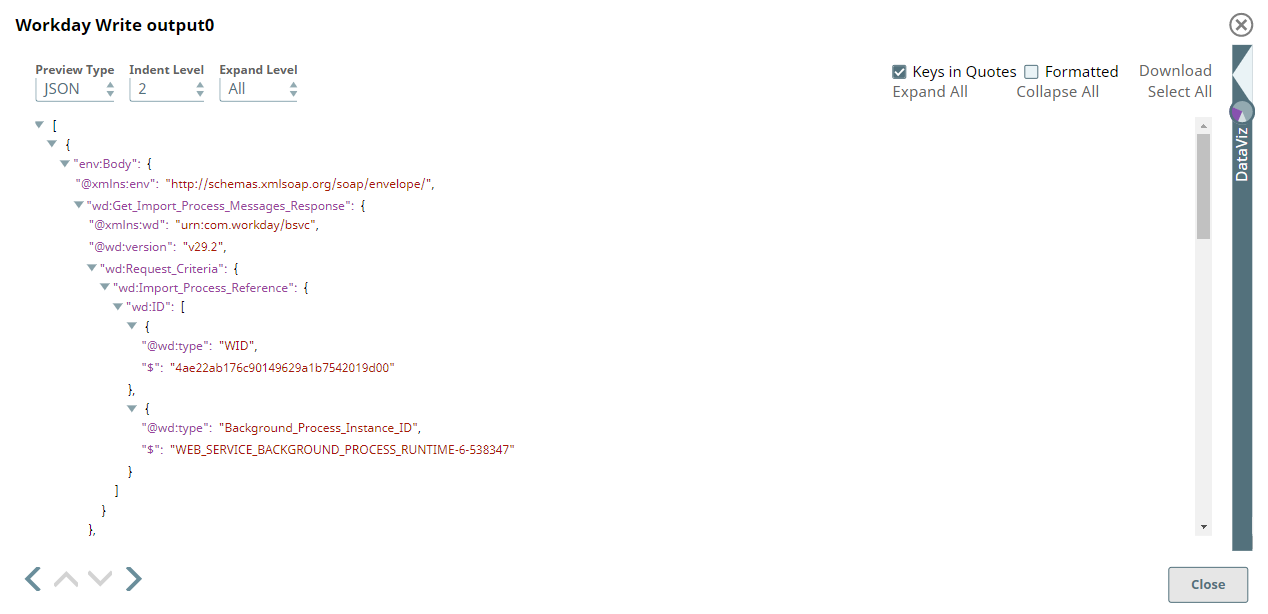
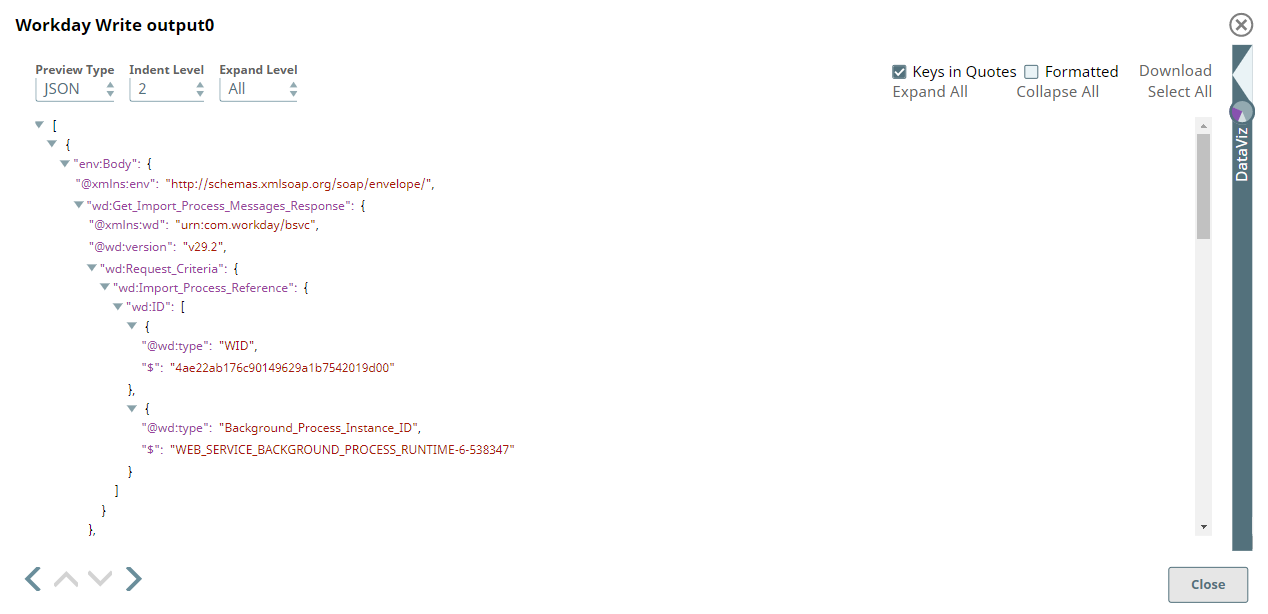
Successful execution of the pipeline displays the below output preview:
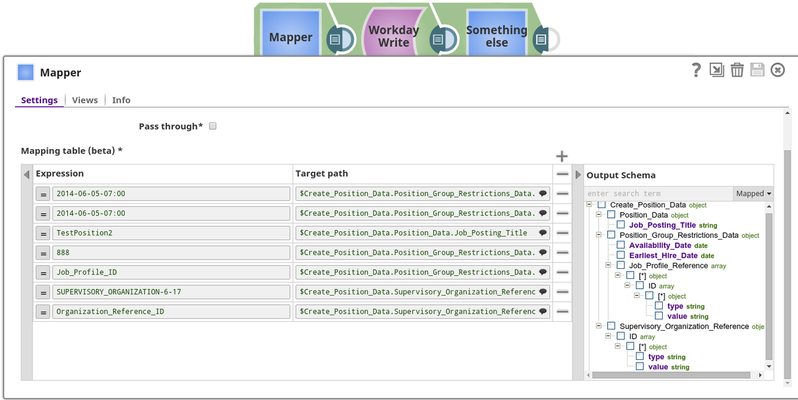
In the first example, we will create a Position using the Staffing service.
We will start with a Mapper Snap where we map the position details such as Availability_Date and Job_Posting_Title.
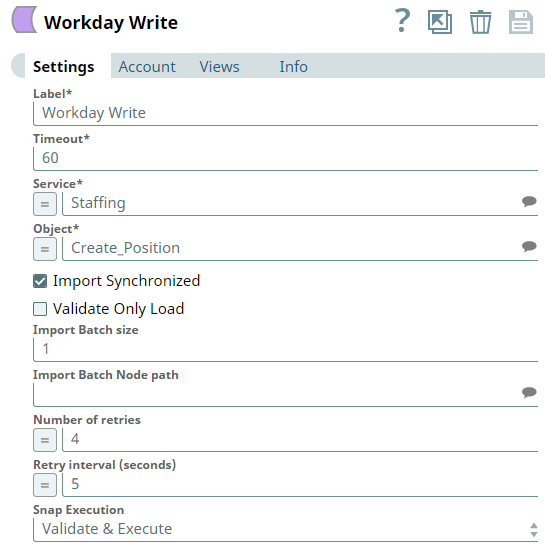
The Workday Write Snap was configured to use the Staffing service with the Create_Position object.
The response is shown below, returning the ID of the position that was created.

ETL transformations with Workday
The following examples describe a pipeline, with a broader business logic involving multiple ETL transformations using the Workday Write Snap.
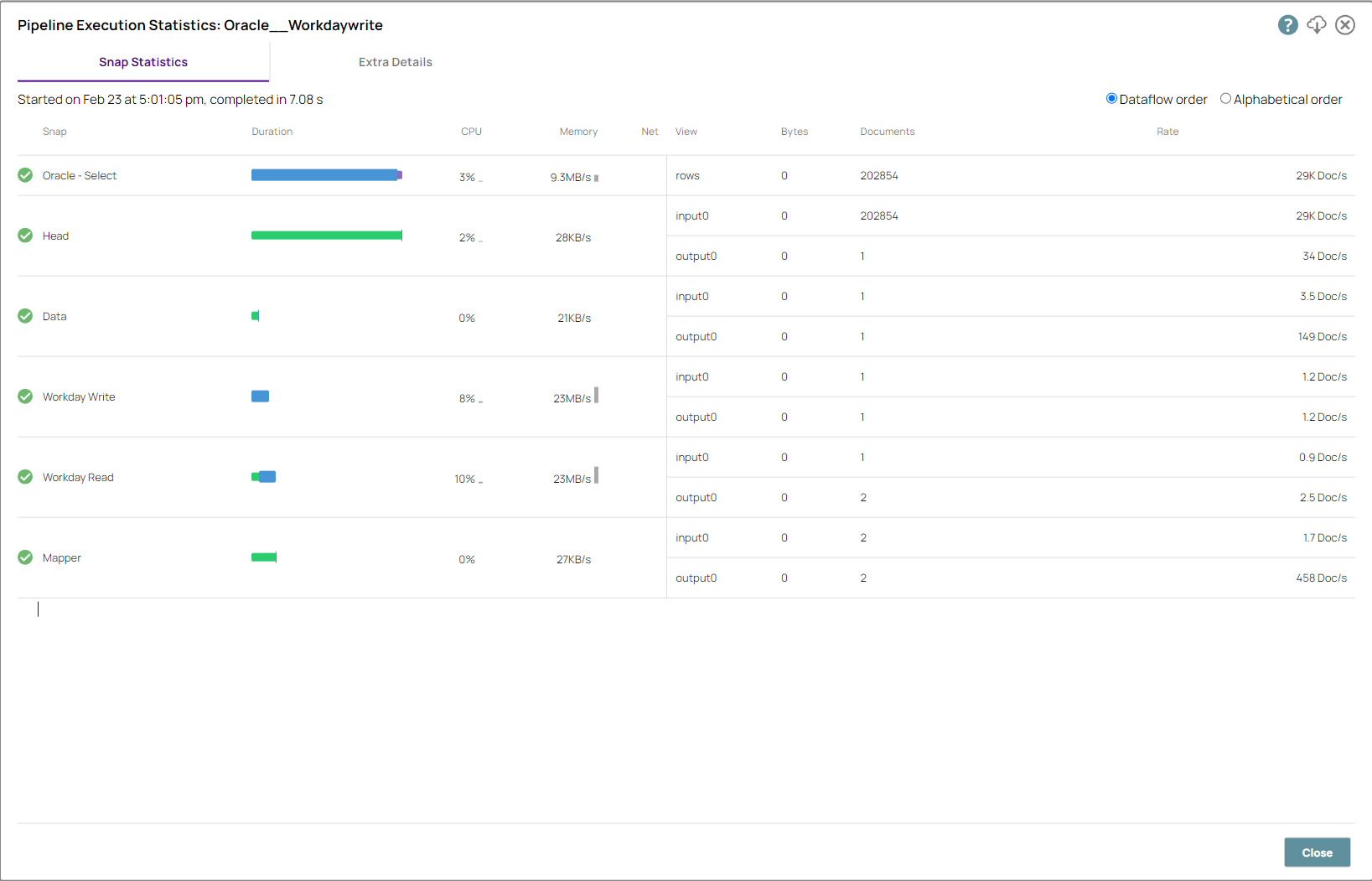
This pipeline reads the documents from the Oracle Database, writes the required documents to the Workday instance, and then reads them.
The ETL transformations Extract: The Oracle Select Snap retrieves the documents from the Oracle Database. Transform: The Head Snap is set to retrieve one document to be passed to the Workday instance. Load: The Mapper Snap maps the input document to the target schema from the Workday service Load: The Workday Write Snap writes the document to the specified Object on the service. Read: The Workday Read Snap reads the inserted document on the Workday Object.
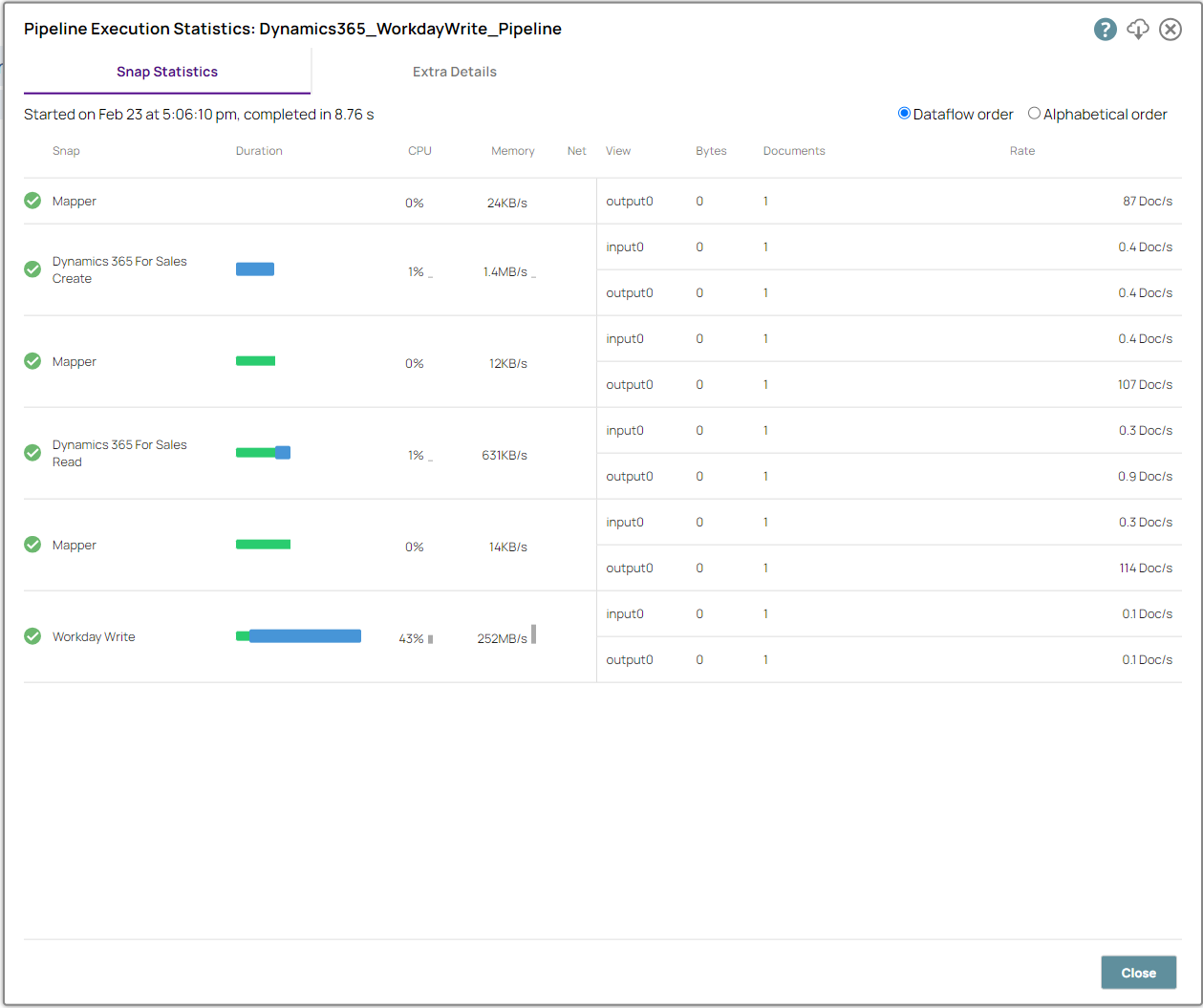
| Another example where the documents are created and migrated from Dynamics 365 for Sales instance to the Workday Write instance. The ETL transformations Extract: The Mapper Snap provides information about the invoice for the Dynamics 365 for Sales Create Snap to create the invoice. Transform: The Dynamics 365 for Sales Create Snap creates invoice and the Dynamics 365 for Sales Read Snap reads the new invoice ID. Load: With the customer invoice as the object name, information is loaded into the Workday Write Snap.
|


Downloads
Snap Pack History
Release | Snap Pack Version | Date | Type | Updates |
|---|---|---|---|---|
May 2025 | 441patches31999 |
| Latest |
|
May 2025 | main31019 |
| Stable | Updated and certified against the current SnapLogic Platform release. |
February 2025 | main29887 |
| Stable | Updated and certified against the current SnapLogic Platform release. |
November 2024 | main29029 | Stable | Updated and certified against the current SnapLogic Platform release. | |
August 2024 | main27765 |
| Stable | Updated and certified against the current SnapLogic Platform release. |
May 2024 | main26341 | Stable | Updated and certified against the current SnapLogic Platform release. | |
February 2024 | 436patches25953 |
| Latest | Upgraded Apache CXF from version 3.4.2 to 3.6.3 to prevent vulnerability issues. |
February 2024 | main25112 |
| Stable | Updated and certified against the current SnapLogic Platform release. |
November 2023 | 435patches24944 |
| Latest | Fixed an issue with Workday REST Snap where the input schema of the Snap did not populate in the upstream Mapper Snap. |
November 2023 | 435patches24309 |
| Latest | Added the WorkdayQL Snap in the Workday Snap Pack, which connects with the Workday Query Language (WQL) endpoints. |
November 2023 | main23721 | 08 Nov 2023 | Stable | Updated and certified against the current SnapLogic Platform release. |
August 2023 | main22460 |
| Stable | Updated and certified against the current SnapLogic Platform release. |
May 2023 | main21015 |
| Stable | Upgraded with the latest SnapLogic platform release. |
February 2023 | 432patches20313 |
| Latest | Fixed an issue with the Workday REST Snap where it failed with a null pointer exception when the input document was null. |
February 2023 | main19844 |
| Stable |
|
January 2023 | 431patches19450 |
| Latest | Introduced the Workday REST Snap to connect to Workday REST APIs. This Snap supports the following new accounts: |
November 2022 | main18944 |
| Stable | Upgraded with the latest SnapLogic platform release. |
October 2022 | 430patches18358 |
| Latest | The Workday Read, Workday Write, and Workday Cancel Snaps are now showing the Services in the suggestions list using the Public Web Service API, which the Snaps failed to use previously. |
August 2022 | 430patches17587 |
| Latest | The performance of the Workday Read Snap is improved to reduce the execution time. |
August 2022 | main17386 |
| Stable | Upgraded with the latest SnapLogic platform release. |
4.29 | main15993 |
| Stable | Added support for the latest version of Workday APIs (certified to be compatible with version 37.0). |
4.28 Patch | 428patches14290 |
| Latest | Enhanced the Workday Cancel Snap with the retry mechanism fields.
|
4.28 | main14627 |
| Stable |
|
4.27 | main12833 | Stable | Enhanced the Workday Read Snap with the new field Pool Size that controls the maximum number of threads in the pool. This field is available only when you select the Multi-threaded checkbox. | |
4.26 Patch | 426patches11525 |
| Latest | Enhanced the Workday Read Snap with the new field Pool Size that controls the maximum number of threads in the pool. This field is available only when you select the Multi-threaded checkbox. |
4.26 | main11181 |
| Stable | Upgraded with the latest SnapLogic platform release. |
4.25 | main9554 |
| Stable | Upgraded with the latest SnapLogic platform release. |
4.24 | main8556 | Stable | Upgraded with the latest SnapLogic platform release. | |
4.23 | main7430 |
| Stable | Upgraded with the latest SnapLogic platform release. |
4.22 | main6403 |
| Stable | Removes support for Workday WSDL Account. Pipelines. You must switch these Snaps using either the Workday Account or Workday Dynamic Account type. |
4.21 | snapsmrc542 |
| Stable | Upgraded with the latest SnapLogic platform release. |
4.20 Patch | workday8817 |
| Latest | Fixes the Workday Write Snap that ignores the Import Synchronized checkbox selection when importing object data. The Snap now:
Existing Pipelines using this Snap to might experience longer exercution times because of |
4.20 Patch | workday8761 |
| Latest | Fixes the Workday Read Snap that fails to validate when configured in the New Form UI. |
4.20 | snapsmrc535 |
| Stable | Upgraded with the latest SnapLogic platform release. |
4.19 | snaprsmrc528 |
| Stable | The Workday Write Snap includes a Validate Only Load checkbox, which enables users to upload–and then manually validate–data before importing it into Workday. |
4.18 Patch | workday7837 |
| Latest | Fixed an issue with the Workday Read Snap wherein the Snap is unable to log SOAP calls. |
4.18 | snapsmrc523 |
| Stable | Upgraded with the latest SnapLogic platform release. |
4.17 | ALL7402 |
| Latest | Pushed automatic rebuild of the latest version of each Snap Pack to SnapLogic UAT and Elastic servers. |
4.17 | snapsmrc515 |
| Latest | Added the Snap Execution field to all Standard-mode Snaps. In some Snaps, this field replaces the existing Execute during preview checkbox. |
4.16 Patch | workday6973 |
| Latest | Fixed an issue with paging variable toggle in Workday Read Snap to produce correct preview data. |
4.16 Patch | workday6862 |
| Latest | Fixed an issue with the Workday Read Snap not logging SOAP calls. |
4.16 | snapsmrc508 |
| Stable | Upgraded with the latest SnapLogic platform release. |
4.15 Patch | workday6727 |
| Latest | Fixed an issue with the Soap Execute Snap failing for Workday when the Trust All certificate is enabled while using SSL authentication. |
4.15 Patch | workday6292 |
| Latest | Fixed an issue with the Workday Read Snap giving inconsistent results. Reverting the multithreading update resolved the issue. |
4.15 | snapsmrc500 |
| Stable | Upgraded with the latest SnapLogic platform release. |
4.14 | snapsmrc490 |
| Stable | Upgraded with the latest SnapLogic platform release. |
4.13 Patch | workday5247 |
| Latest | Fixed the Workday Read Snap that took an extended time to read from the Workday application. |
4.13 | snapsmrc486 |
| Stable | Upgraded with the latest SnapLogic platform release. |
4.12 | snapsmrc480 |
| Stable | Upgraded with the latest SnapLogic platform release. |
4.11 | snapsmrc465 |
| Stable | Upgraded with the latest SnapLogic platform release. |
4.10 | snapsmrc414 |
| Stable | Upgraded with the latest SnapLogic platform release. |
4.9 | snapsmrc405 |
| Stable |
|
4.8 | snapsmrc398 |
| Stable |
|
4.7 | snapsmrc382 |
| Stable | Upgraded with the latest SnapLogic platform release. |
4.6 | snapsmrc362 |
| Stable |
|
4.5.1 | snapsmrc344 |
| Stable | Resolved issues in Workday Snaps to ensure appropriate errors are routed to the error views. |
4.4.1 |
|
| Stable | Upgraded with the latest SnapLogic Platform release. |
4.4 |
|
| Stable | Resolved an exception in Workday Read. |
4.3.2 |
|
| Stable |
|
 icon to pass values during runtime.
Related Content
Community Link: Post EEO Data to Workday
Have feedback? Email documentation@snaplogic.com | Ask a question in the SnapLogic Community
© 2017-2025 SnapLogic, Inc.