Reltio Snap Pack: Migrating from the Field version to the Product version
- Kalpana Malladi
- Ankur Parekh
- Mohammed Iqbal
In this article
This article explains the procedure to migrate existing SnapLogic Pipelines that use the Field version of the Reltio Snap Pack (Reltio Snap Connector) to the Product version of the Reltio Snap Pack.
Mapping the Reltio Snaps
| Professional Services Version | Product Version |
|---|---|
| Reltio Snap Connector Snap Pack | Reltio Snap Pack |
| Reltio Snap Get by Object | Reltio Read (Object) |
| Reltio Snap Get by Crosswalk | Reltio Read (Crosswalk) |
| Reltio Snap Delete by Object | Reltio Delete (Object) |
| Reltio Snap Delete by URI | Reltio Delete (URI) |
| Reltio Snap Merge | Reltio Merge |
| Reltio Snap UnMerge | Reltio UnMerge |
| Reltio Snap Write | Reltio Create |
| Reltio Generic Execute | None (Alternative Snap – REST Get) Release Version 4.14: Reltio Generic Execute Snap |
| Reltio Relations Hierarchy | None (Alternative Snap – Mapper) |
| None | Reltio Update |
| None | Reltio Bulk Export |
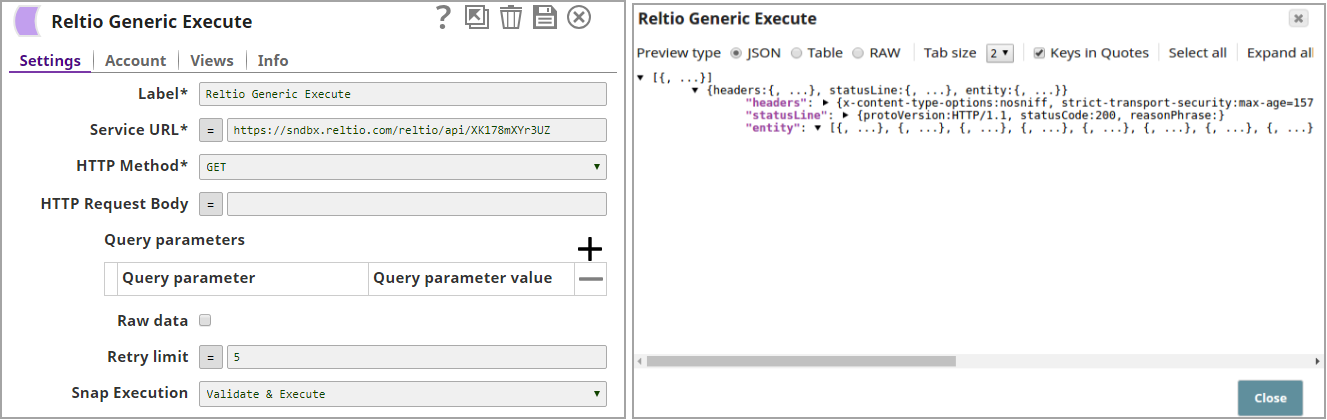
At its initial launch, the Reltio Snap Pack did not have a counterpart Reltio Generic Execute Snap. At the time the REST Get Snap was suggested as the alternative. From release version 4.14 onward a Reltio Generic Execute Snap has been added. Steps for migrating from REST Get to Reltio Generic Execute are also added in this document.
Migrating the Reltio Professional Services Version to the Product Version
Before you begin
- Subscribe to the Reltio Product version by contacting your SnapLogic Technical Account Manager or SnapLogic Support, requesting to enable the version for your orgs.
- If your pipelines use the Reltio Generic Execute and Relations Hierarchy Snaps, then perform the additional steps listed in the subsequent sections that explain the procedure to replace those Snaps using the REST Get Snap and the Mapper Snap, respectively.
Steps
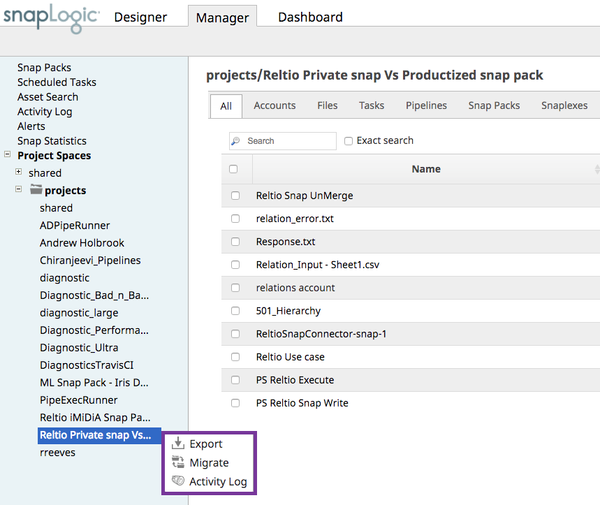
- Log in to the SnapLogic Elastic platform. In Manager, browse to the project folder of your existing pipeline and right click to Export the pipeline information.
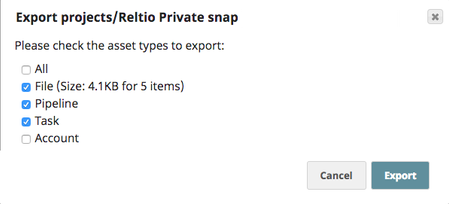
- In the Export projects dialog, select all the check boxes, except Account (since you will be later reconfiguring that information for the new Reltio Snaps).
- Alternately, to migrate a single pipeline, open the same in Designer and click
 on the top right menu bar to export the pipeline.
- Alternately, to migrate a single pipeline, open the same in Designer and click
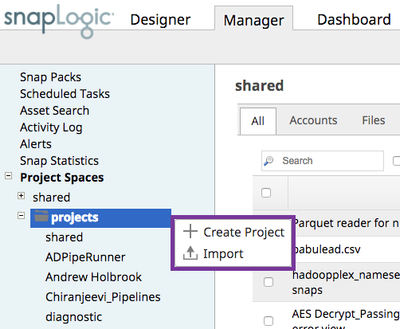
- Create a new project folder and then import the saved project/pipeline zip file to the new folder.
- Go to Manager > Snap Packs and select the default build for Reltio, for example:
snapsmrc465 (default),or later, assuming that SnapLogic Support has enabled it for your orgs. You need admin permission to perform this step.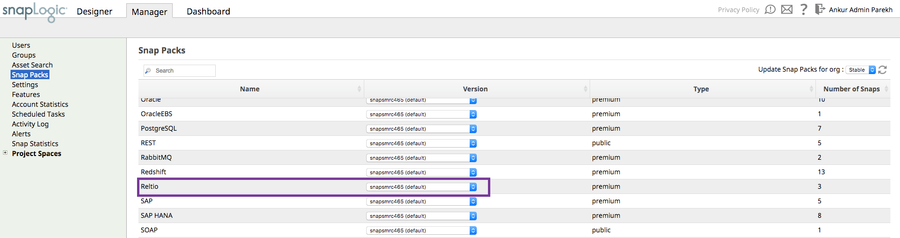
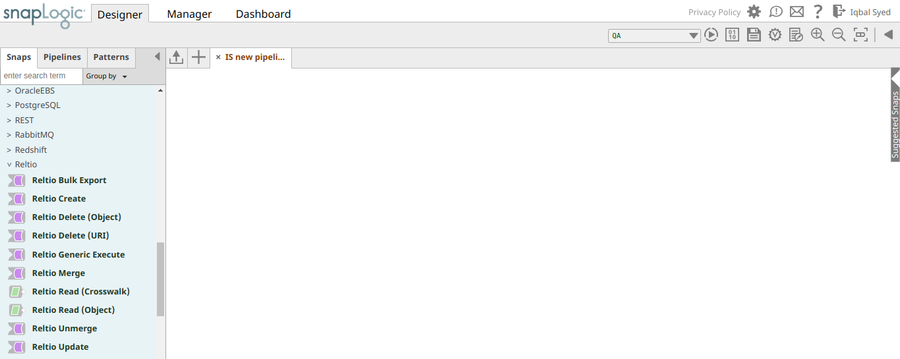
- Go to Designer > Snaps to view the Reltio Snap Pack in the catalog.
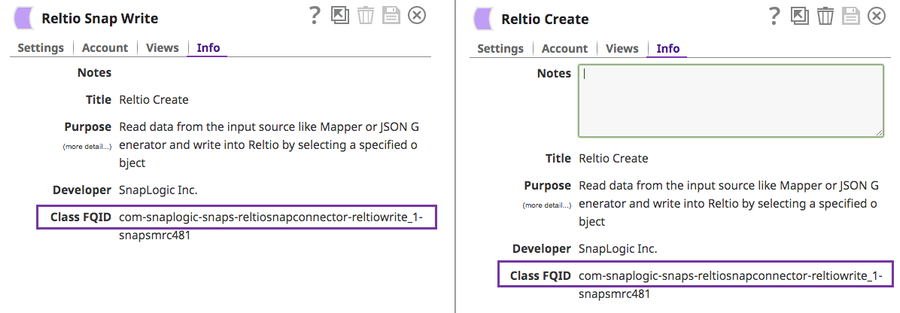
- Verify that the FQID of your existing PS Snap matches with that of the new Reltio Product version. If they differ, then you are probably comparing a different Reltio PS version.
- Go to Designer > Pipelines, browse to your new project folder where you imported the existing pipelines and launch the pipelines that have the Reltio Snaps. However, the pipelines will not validate, due to the new parameters introduced in the Product version.
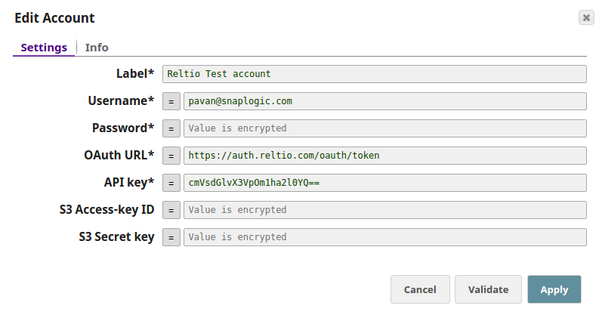
- For each Reltio Snap, enter the Reltio account and other Snap information. For instance, the new parameters. See the Mapping Parameters for Snaps table for more information.
- Save
 the pipeline to validate the new Reltio accounts and Snap configuration.
Mapping Parameters for Snaps
| Name | Parameters | Change in the Product Version | |
|---|---|---|---|
| Professional Services (PS) | Product | ||
| Account | Connect with your Amazon S3 bucket to export data to S3 | ||
| Label | Label | -- | |
| Username | Username | -- | |
| Password | Password | -- | |
| OAuth2 Token | OAuth URL | -- | |
| API Key | API Key | -- | |
| -- | S3 Access-key ID | New parameter | |
| -- | S3 Secret key | New parameter | |
| Reltio Read (Object) | Max one document as output (vs. max two documents as output in the PS version) | ||
| Label | Label | -- | |
| Tenant URL | Tenant URL | -- | |
| Object | Object | -- | |
| Object Types | Object Types | -- | |
| -- | Object Id | New parameter | |
| Query Parameters | Query Parameters | -- | |
| Explode | Group | Parameter name changed | |
| Maximum Request Attempts | -- | Parameter removed | |
| Retry Request Interval | Retry Limit | Parameter name changed | |
| Reltio Read (Crosswalk) | Max one document as output (vs. max two documents as output in the PS version) | ||
| Label | Label | -- | |
| Tenant URL | Tenant URL | -- | |
| Object | Object | -- | |
| Batch size | Batch size | -- | |
| -- | Thread limit | New parameter | |
| Query parameters | Query parameters | -- | |
| Explode | Group | -- | |
| Maximum request attempts | -- | Parameter removed | |
| Retry request interval | Retry limit | Parameter name changed | |
| Reltio Delete (Object) | -- | ||
| Label | Label | -- | |
| Tenant URL | Tenant URL | -- | |
| Object | Object | -- | |
| Object identifier | Object Id | -- | |
| -- | Bulk delete | New parameter | |
| Maximum request attempts | -- | Parameter removed | |
| Retry request interval | Retry limit | -- | |
| Execute during preview | Execute during preview | -- | |
| Reltio Delete (URI) | -- | ||
| Label | Label | -- | |
| Tenant URL | Tenant URL | -- | |
| Reference URI | URI | Reenter the URI value as it does not migrate from the PS version | |
| Maximum request attempts | -- | Parameter removed | |
| -- | Bulk delete | New parameter | |
| -- | Retry limit | New parameter | |
| Execute during preview | Execute during preview | -- | |
| Reltio Merge | Two different records (columns) can be combined into one in the Product version | ||
| Label | Label | -- | |
| Tenant URL | Tenant URL | -- | |
| -- | Operations | New parameter | |
| -- | Winner Id | New parameter | |
| -- | Loser Id | New parameter | |
| Maximum request attempts | -- | Parameter removed | |
| Retry request interval | Retry limit | Parameter name changed | |
| Execute during preview | Execute during preview | -- | |
| Reltio UnMerge | -- | ||
| Label | Label | -- | |
| Tenant URL | Tenant URL | -- | |
| -- | Operations | New parameter | |
| -- | Origin Entity Id | New parameter | |
| -- | Spawn Entity Id | New parameter | |
| Unmerge entity tree | Unmerge entity tree | -- | |
| Maximum request attempts | -- | Parameter removed | |
| Retry request interval | Retry limit | -- | |
| Execute during preview | Execute during preview | -- | |
| Reltio Create | -- | ||
| Label | Label | -- | |
| Tenant URL | Tenant URL | -- | |
| Object | Object | -- | |
| Object types | Object types | -- | |
| Batch size | Batch size | -- | |
| Maximum threads | Thread limits | Parameter name changed | |
| Maximum request attempts | -- | Parameter removed | |
| Retry request interval | Retry limit | Parameter name changed | |
| Thread limit | Thread limit | -- | |
| Query parameters | Query parameters | -- | |
| Retry limit | Retry limit | -- | |
| Reltio Generic Execute | -- | ||
| Label | Label | -- | |
| Http Method | HTTP Method | Parameter name changed | |
| Service Url | Service URL | Parameter name changed | |
| HTTP Body | HTTP Request Body | Parameter name changed | |
| Query parameters | Query parameters | -- | |
| Raw data | Raw data | -- | |
| Maximum request attempts | Retry limit | Parameter name changed | |
| Retry request interval | -- | Parameter removed | |
| Execute during preview | Execute during preview | -- | |
See the Reltio Help for information on Reltio functionality and parameters. You will need the Reltio account user credentials to access the help.
Migrating Reltio Generic Execute Snap to REST Get Snap
After migrating to the Product version of the Reltio Snap Pack per the above procedure, you will notice that the Generic Execute Snap in the canvas turns Red in color because it is unsupported in the Product version. You can use the REST Get Snap that has similar functionality as the Reltio Generic Execute Snap.
Steps
- On the Designer canvas, click the Generic Execute Snap to open its configuration window, and click the delete
 icon to remove the Snap from the pipeline.
 - From the Snaps catalog, drag the REST Get Snap at the same placement as the Generic Execute Snap.
- Enter the Service URL in the OAuth format (https://auth.reltio.com/oauth/token?grant_type=password&username=) and the API key via the HTTP header (see the After Migrating section below).
- Click on the Rest Get Snap connector and retrieve the access token.
- In the downstream Rest Get Snap, enter the Service URL, for example, https://sndbx.reltio.com/reltio/api/XK178mXYr3UZrG6/entities?filter=(equals(type,'HCP')) and the access token ID in the HTTP header value.
- Provide the remaining configuration information (per your requirements) as given in the REST Get Snap document.
- Click Save
 to validate the pipeline.
Example
Before Migrating
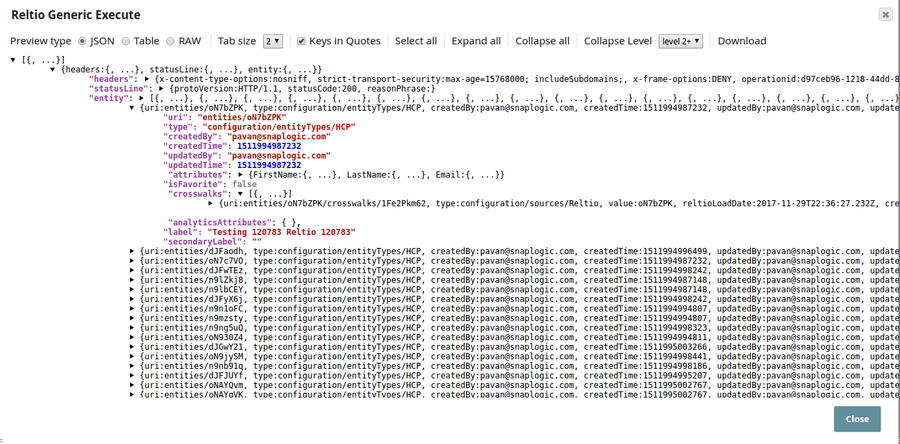
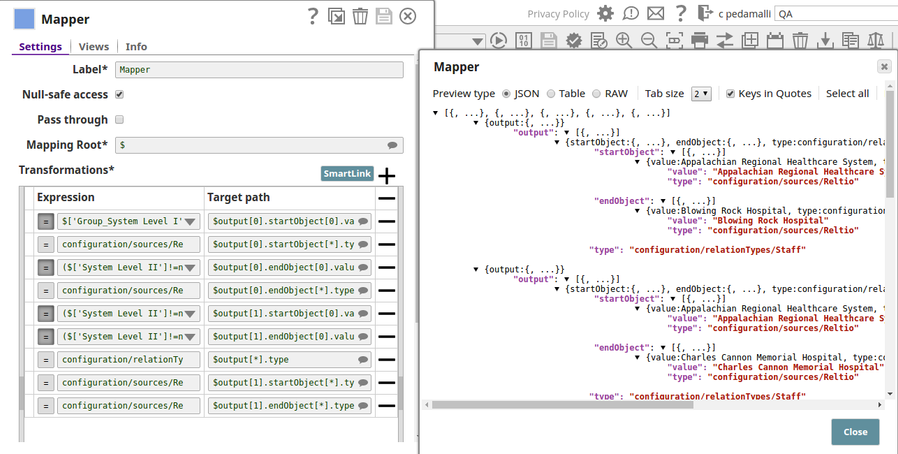
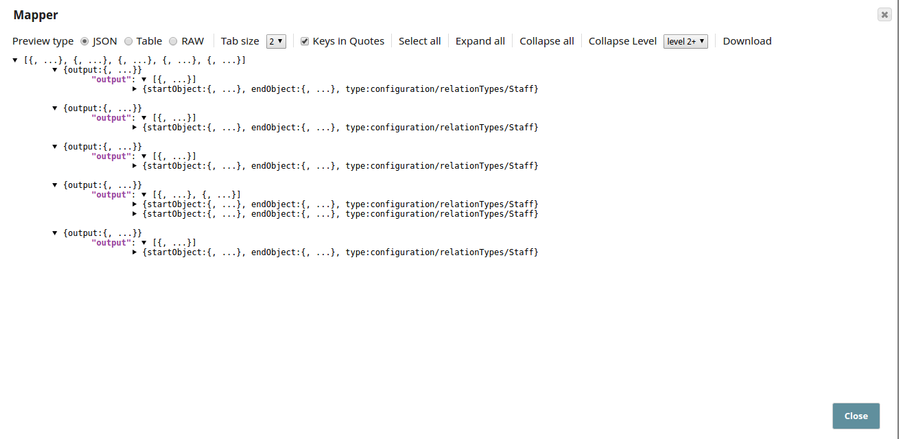
After Migrating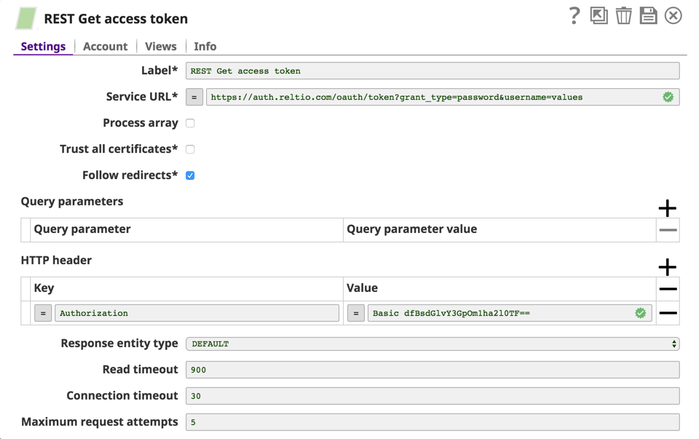
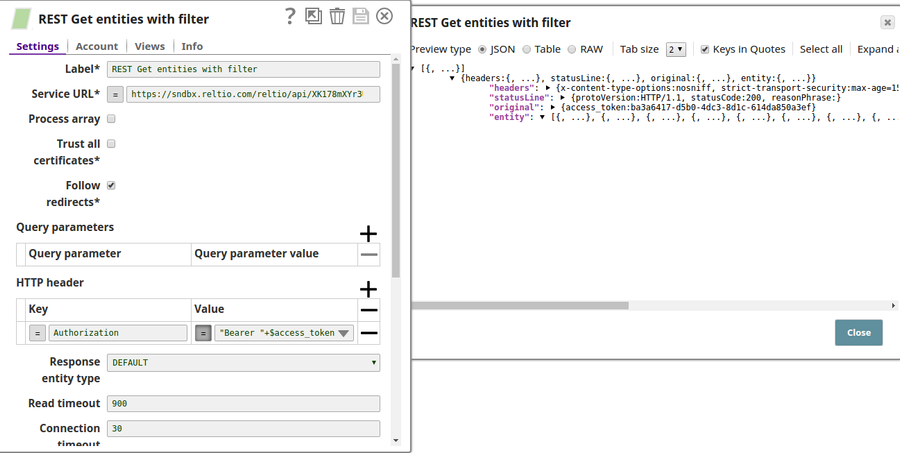

Migrating from the REST GET Snap to Reltio Generic Execute Snap
This is applicable only if you have already mapped the parameters in the Professional Services' version of the Reltio Generic Snap to the REST GET Snap and now wish to replace it with the Product Version of the Reltio Generic Execute Snap.
Steps
- On the Designer canvas, click the REST GET Snap to open its configuration window and click the delete
 icon to remove the Snap from the pipeline.
 - From the Snaps catalog, drag the Reltio Generic Execute Snap at the same placement as the REST GET Snap.
- Configure the Account settings for the Snap as you would the other Reltio Snaps.
- Enter the service URL in the required format in the Service URL property.
- Select the operation applicable from the HTTP Method property.
- Provide the remaining configuration information (per your requirements) as given in the Reltio Generic Execute Snap document.
- Click Save
 and validate the pipeline.
Migrating Reltio Relations Hierarchy Snap to Mapper Snap
After migrating to the Product version of the Reltio Snap Pack per the above procedure, you will notice that the Generic Execute Snap in the canvas turns Red in color because it is unsupported in the Product version. You can use the Mapper Snap that has similar functionality as the Reltio Relations Hierarchy Snap.
Steps
- On the Designer canvas, click the Relations Hierarchy Snap to open its configuration window, and click the delete
 icon to remove the Snap from the pipeline.
 - From the Snaps catalog, drag the Mapper Snap at the same placement as the Relations Hierarchy Snap.
- Pass the input data and transform the data based on the hierarchy from the Mapper snap.
- Provide the remaining configuration information (per your requirements) as given in the Mapper Snap document.
- Click Save
 to validate the pipeline.
Example
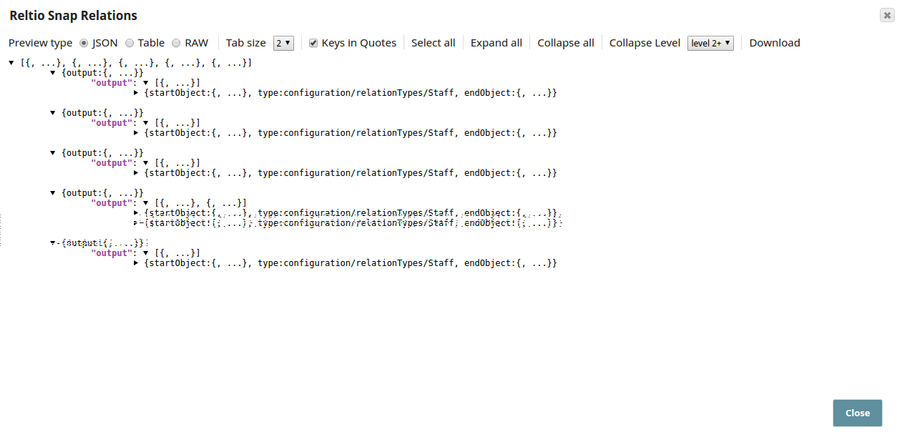
Before Migrating
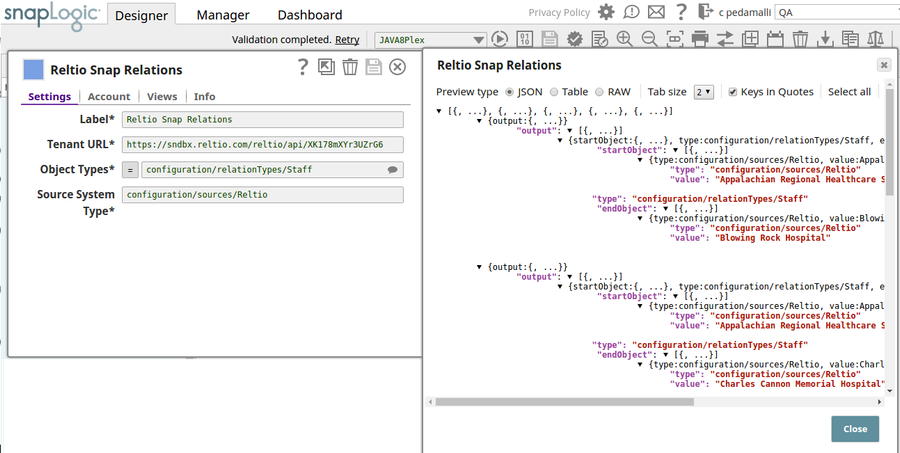
After Migrating
Deleting the PS Snap Pack
After the existing pipelines successfully execute in the new Reltio Snap Pack Product version, you may optionally delete the PS Snap Pack and related pipelines.
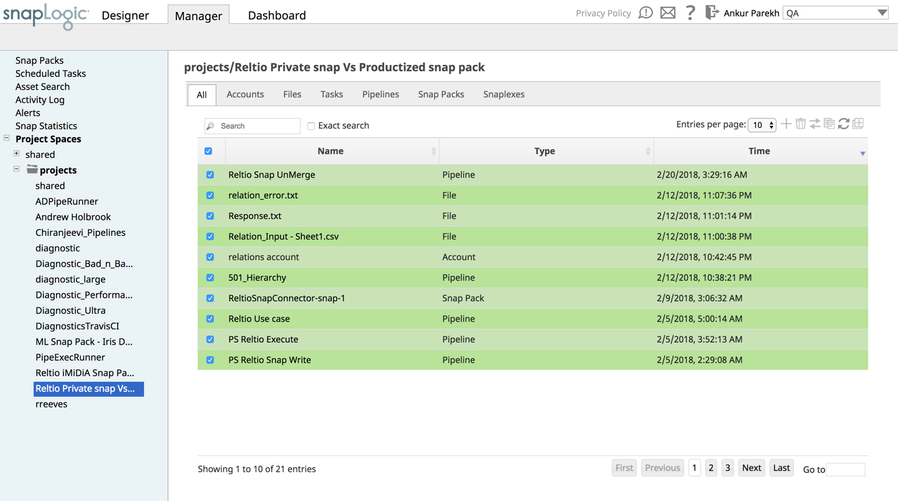
Go to Manager > Snap Packs, browse to the project in which the Reltio PS Snap Pack pipelines exist and delete the same. Repeat this step for each org and project that you have full access to.
See Also
Have feedback? Email documentation@snaplogic.com | Ask a question in the SnapLogic Community
© 2017-2025 SnapLogic, Inc.