SAP HANA - Insert
- Kalpana Malladi
- Aparna Tayi (Unlicensed)
- Mohammed Iqbal
On this Page
Snap type: | Write | |||||||
|---|---|---|---|---|---|---|---|---|
Description: | This Snap executes a SQL Insert statement using the document's keys as the columns to insert to and the document's values as the values to insert into the columns.
Expected upstream Snaps: The data to be written to table can be defined by providing values upstream. The document generator Snaps like JSON Generator can be used upstream. Expected downstream Snaps: The Snap will output one document for every record written, hence any document processing Snap can be used downstream. Table CreationIf the table does not exist when the Snap tries to do the insert and the Create table property is set, the table will be created with the columns and data types required to hold the values in the first input document. If you would like the table to be created with the same schema as a source table, you can connect the second output view of a Select Snap to the second input view of this Snap. The extra view in the Select and Insert Snaps are used to pass metadata about the table, effectively allowing you to replicate a table from one database to another.
The table metadata document that is read in by the second input view contains a dump of the JDBC DatabaseMetaData class. The document can be manipulated to affect the "CREATE TABLE" statement that is generated by this Snap. For example, to rename the "name" column to "full_name", you can use a Mapper Snap that sets the path "$.columns.name.COLUMN_NAME" to "full_name". The document contains the following fields:
The Snap will not automatically fix some errors encountered during table creation since they may require user intervention to resolve correctly. For example, if the source table contains a column with a type that does not have a direct mapping in the target database, the Snap will fail to execute. You will then need to add a Data Snap to change the metadata document to explicitly set the values needed to produce a valid "CREATE TABLE" statement. | |||||||
| Prerequisites: | None. | |||||||
| Support and limitations: | Works in Ultra Tasks when the Batch Size is set to 1. | |||||||
| Account: | This Snap uses account references created on the Accounts page of SnapLogic Manager to handle access to this endpoint. See Configuring SAP HANA Accounts for information on setting up this type of account. | |||||||
| Views: |
| |||||||
Settings | ||||||||
Label* | Specify the name for the Snap. You can modify this to be more specific, especially if you have more than one of the same Snap in your pipeline | |||||||
Schema name | Specify the database schema name. In case it is not defined, then the suggestion for the Table Name will retrieve all tables names of all schemas. The property is suggestible and will retrieve available database schemas during suggest values. The values can be passed using the pipeline parameters but not the upstream parameter. Example: SYS | |||||||
Table name | Specify the name of the table to execute insert on. You can pass the values using the Pipeline parameters but not the upstream parameter. Example: people Default value: [None] | |||||||
Create table if not present | Select this checkbox to automatically create the target table if it does not exist.
Due to implementation details, a newly created table is not visible to subsequent database Snaps during runtime validation. If you want to immediately use the newly updated data you must use a child Pipeline that is invoked through a Pipeline Execute Snap. Default value: Not selected | |||||||
| Preserve case sensitivity | ||||||||
| Number of retries | Specify the maximum number of attempts to be made to receive a response. The request is terminated if the attempts do not result in a response. Default value: 0
| |||||||
| Retry interval (seconds) | Specifies the time interval between two successive retry requests. A retry happens only when the previous attempt resulted in an exception. Default value: 1 | |||||||
Snap execution | Select one of the three modes in which the Snap executes. Available options are:
| |||||||
In a scenario where the Auto commit on the account is set to true, and the downstream Snap does depends on the data processed on an Upstream Database Bulk Load Snap, use the Script Snap to add delay for the data to be available.
For example, when performing a create, insert and a delete function sequentially on a pipeline, using a Script Snap helps in creating a delay between the insert and delete function or otherwise it may turn out that the delete function is triggered even before inserting the records on the table.
Examples
The following example illustrates how to insert data into a table. The table 'USER' is not existing on database initially. So the Snap will first creates the table 'USER' table.
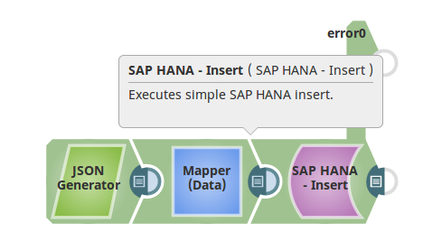
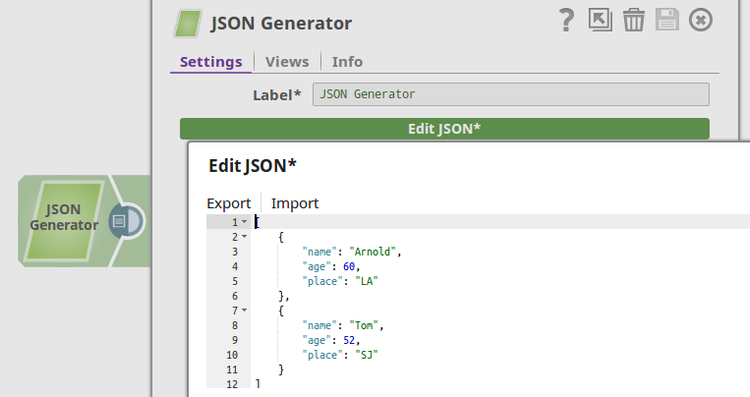
First we pass the data we want to insert with a JSON Generator Snap:
Mapper will help map the data between JSON Generator and SAP HANA Insert Snaps.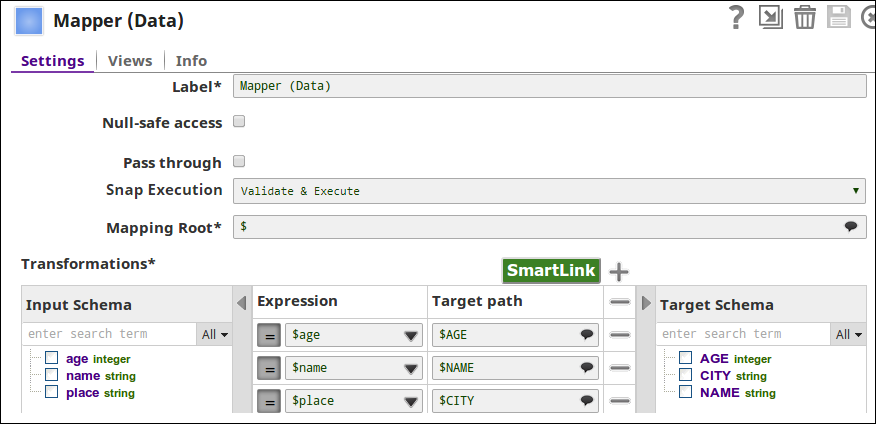
Then we pass this data to SAP HANA Insert Snap to it and set up the table name USER under schema 'NEO_EY6W9QLUI3JQ38SLB5B5PDGKI'
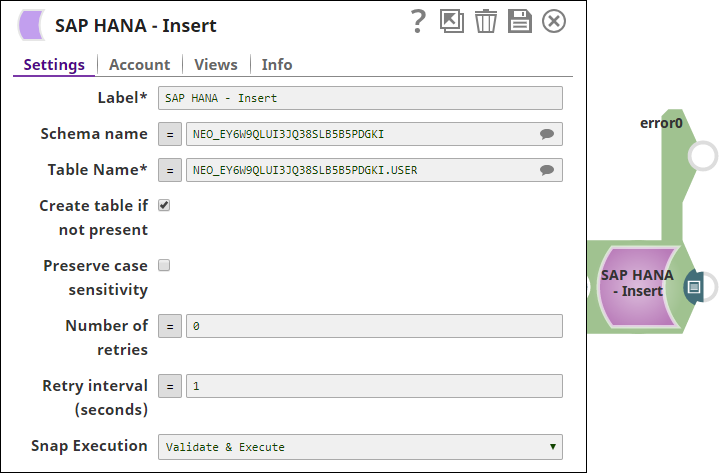
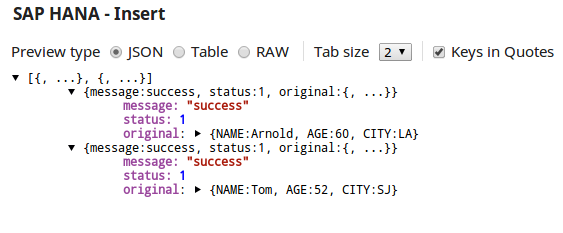
Here is the sample output of the Snap:
Snap Pack History
Have feedback? Email documentation@snaplogic.com | Ask a question in the SnapLogic Community
© 2017-2025 SnapLogic, Inc.