Configuring Kafka Accounts
- Kalpana Malladi
- Aparna Tayi (Unlicensed)
- Ankur Parekh
Overview
You must create Confluent Kafka accounts to connect to data sources that you want to use in your Pipelines.
Snap-Account Compatibility
| Snap | Kafka Account | Kafka Kerberos Account | Kafka SSL Account | Protocols Supported | No Account |
|---|---|---|---|---|---|
| Kafka Acknowledge | ✖ | ✖ | ✖ | TLS/SSL | ✔ |
| Kafka Consumer | ✔ | ✔ | ✔ | TLS/SSL | ✖ |
| Kafka Producer | ✔ | ✔ | ✔ | TLS/SSL | ✖ |
Configuring Confluent Kafka Accounts
You can configure your Confluent Kafka accounts in SnapLogic using either the Designer or Manager.
Using SnapLogic Designer
Drag a Kafka Snap to the Canvas and click the Snap to open its settings. Click the Account tab. You can now either use an existing account or create a new one.
Selecting an existing account
SnapLogic organizes and displays all accounts to which you have access, sorting them by account type and location. To select an existing account:
- Click the
 icon to view the accounts to which you have access and select the account that you want to use.
 - Click
 to save the Snap settings.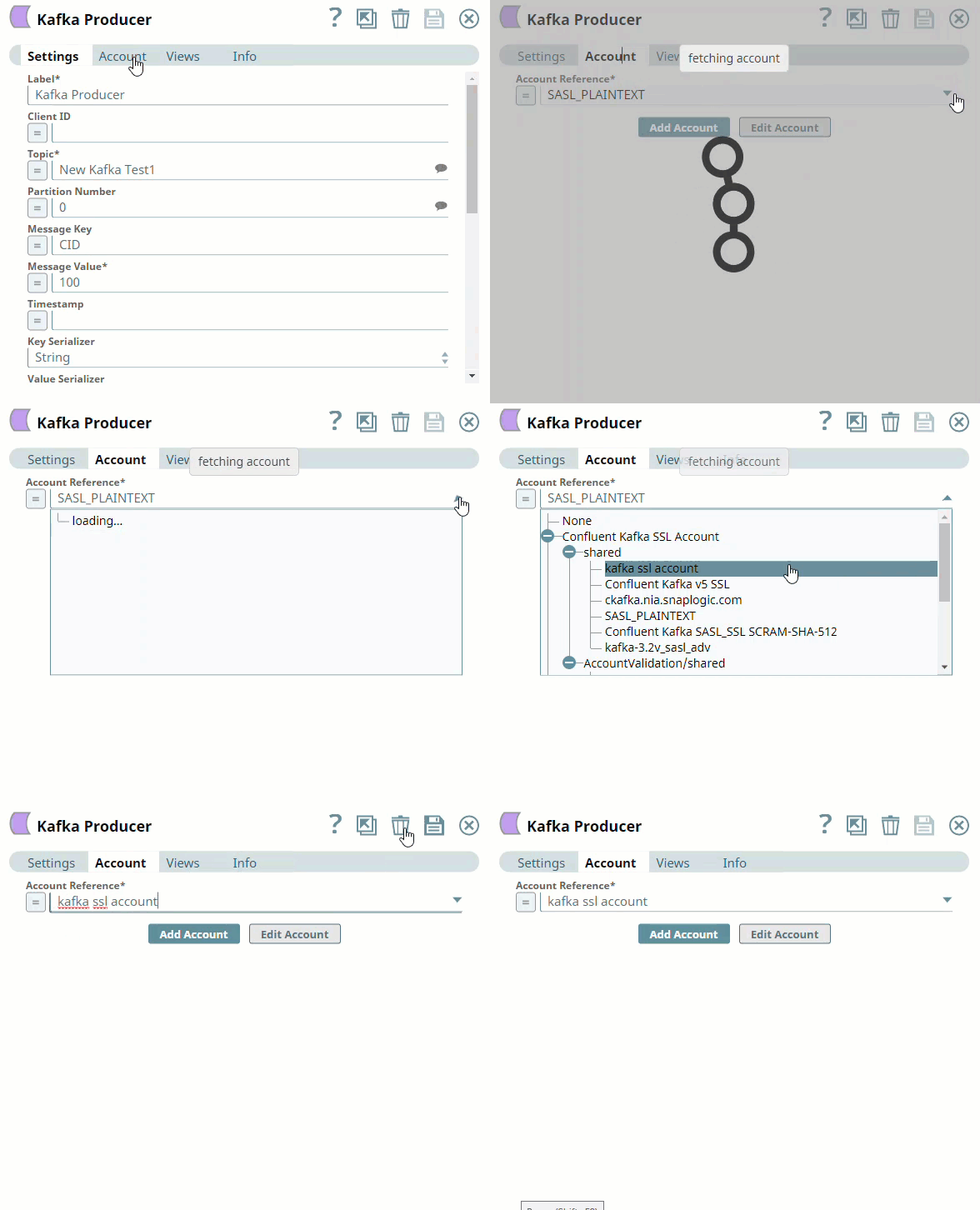
Creating an account
- Click Add Account in the Account Reference dialog.
- Select the Location in which you want to create the account, select the account type, and click Continue. The Add Account dialog associated with the account type appears.
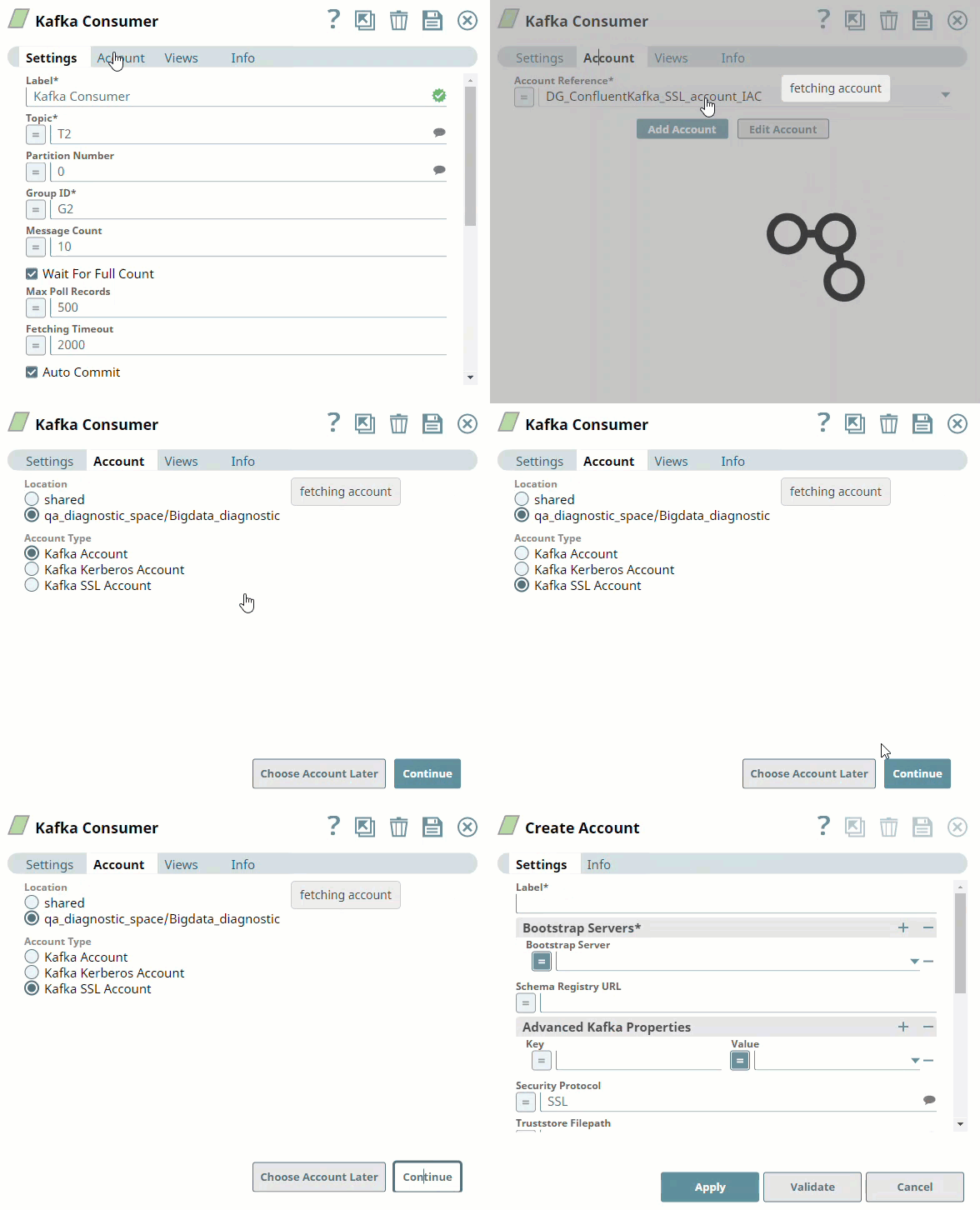
- Enter the required account details. For detailed guidance on how to provide information associated with each account type, use the following links:
- Kafka Account
- Kafka Kerberos Account
Enter additional information on this account in the Notes field of the Info tab. This will help you–and other users–understand the purpose of the account, especially if there are multiple accounts of the same type.
Click Validate to verify the account, if the account type supports validation.
Click Apply to complete configuring the Kafka account.
Using SnapLogic Manager
Use Manager to create accounts without associating them immediately with Pipelines.
Accounts in SnapLogic are associated with projects. You can use accounts created in other projects only if you have at least Read access to them.
- In the left pane, browse to the project in which you want to create the account and click Create > Account > Confluent Kafka, followed by the appropriate account type.
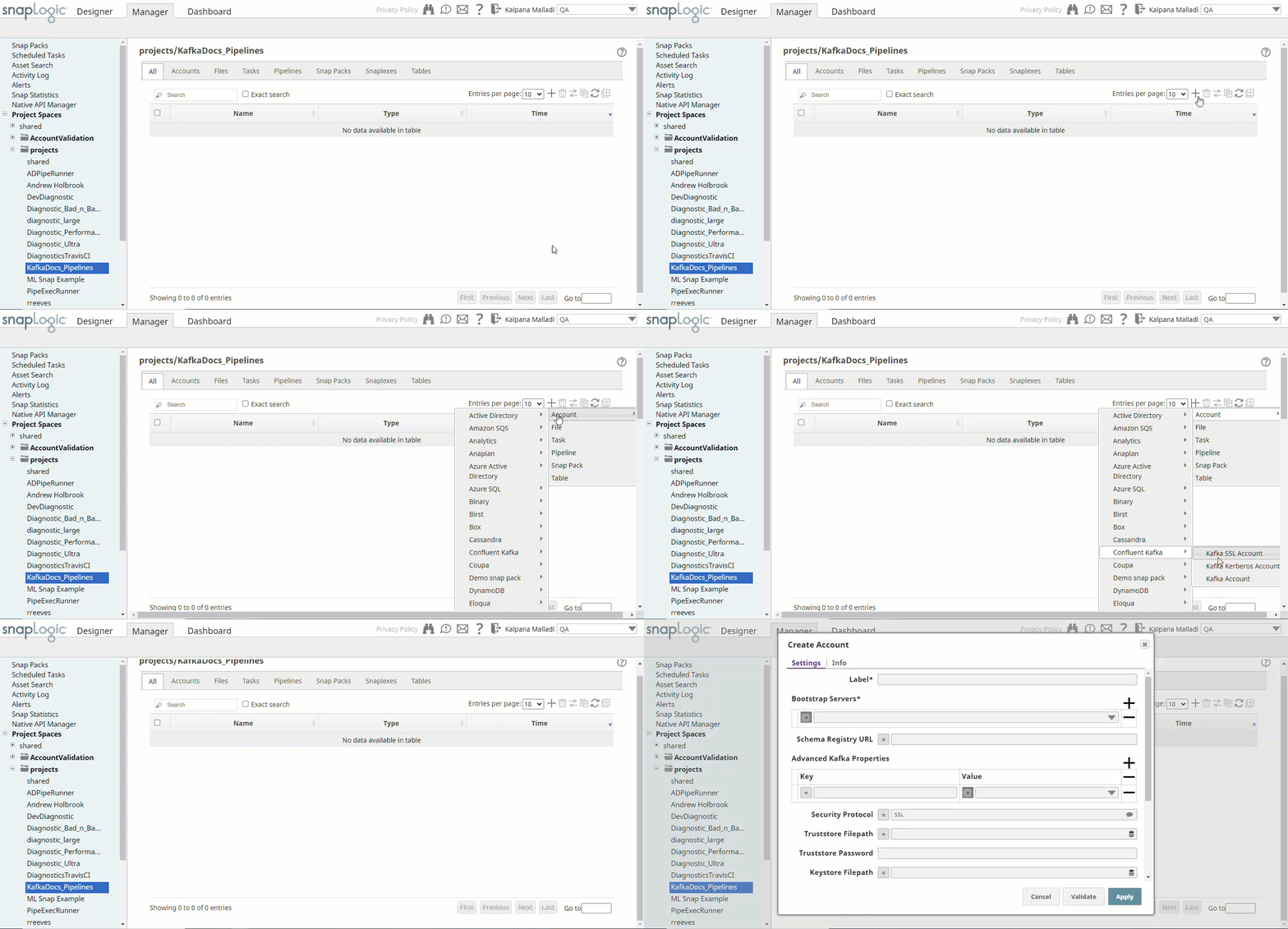
Repeat the steps numbered 3 through 5 in the Creating an account section.
Avoid updating account credentials while Pipelines using that account are executing. This may lead to unexpected results, including locking your account.
Account Encryption
| Standard Encryption | If you use Standard Encryption, the High sensitivity settings under Enhanced Encryption are used. |
| Enhanced Encryption | If the account you are using has the Enhanced Encryption feature, the account fields are encrypted for each sensitivity level as shown below:
|
Troubleshooting
| Error | Reason | Resolution |
|---|---|---|
| The message size exceeds the default message limit. | By default, the message size limit is 1 MB. To increase this limit, you must change a few settings in the Confluent Kafka broker and Snap account. On the Confluent Kafka broker side, set the server.properties and producer.properties to a size larger than your message size. | In the Advanced Kafka Properties field of the applicable Snap account settings, you must add For example, you can increase the message size limit to 15 MB in any one of the following ways:
|
Snap Pack History
| Release | Snap Pack Version | Date | Type | Updates |
|---|---|---|---|---|
| February 2025 | 440patches29980 | Latest | Enhanced the Kafka OAuth2 Account to support SASL extensions through Advanced properties using OAuth/OIDC. | |
| February 2025 | main29887 | Stable | Updated and certified against the current SnapLogic Platform release. | |
| November 2024 | main29029 | Stable | Updated and certified against the current SnapLogic Platform release. | |
| August 2024 | 438patches28723 | Latest | Enhanced the Kafka MSK IAM Account to support debugging for the IAM configuration. When you configure IAM debugging (Global properties and Logging Level) in the Snaplex configuration, the account logs the IAM credential identity in the Snaplex log. | |
| August 2024 | 438patches28225 | - | Enhanced the Kafka MSK IAM Account to support Cross Account IAM Access on Amazon MSK Cluster configured through Transit Gateway and multi VPC Peering. | |
August 2024 | main27765 | | Stable | Upgraded the |
| August 2024 | 437patches27730 | Latest | Fixed an issue with the Kafka Consumer Snap where the Seek Type of Beginning or End (skip all existing messages) may not work correctly after a rebalance. | |
| May 2024 | 437patches27404 | Latest | Fixed an issue with the Kafka SSL Account that displayed an error when the Kafka Consumer Snap could not commit offsets during the rebalancing process. This behavior avoids unstable partition allocation. Now, the Snap logs a warning, allowing the Kafka Consumer to continue processing instead of displaying an exception. | |
| May 2024 | 437patches26651 | Latest | Added Kafka OAuth2 Account to the Kafka Snap Pack to enable the usage of OAuth within the Kafka SASL_SSL framework. | |
| May 2024 | main26341 | Stable | Kafka Snap Pack: Enhanced the following fields to support expressions through pipeline parameters:
| |
| February 2024 | main25112 | Stable | Updated and certified against the current SnapLogic Platform release. | |
| November 2023 | main23721 |
| Stable | Updated and certified against the current SnapLogic Platform release. |
August 2023 | main22460 |
| Stable | Updated and certified against the current SnapLogic Platform release. |
| May 2023 | 433patches21070 | Latest | Fixed an issue with the Kafka Consumer Snap that caused it to skip records in a partition when a pipeline failed without successfully processing any records from that partition. This was an edge case that was only possible with a specific configuration of the Snap and a specific ordering of events during termination of the pipeline. | |
May 2023 | main21015 | Stable | Upgraded with the latest SnapLogic Platform release. | |
| February 2023 | 432patches20143 | Latest/Stable | Fixed an issue with the Kafka Producer Snap to avoid an error about delivery.timeout.ms. The Snap now adjusts the value of the Message Publish Timeout setting automatically and displays a warning in the Pipeline Execution Statistics. | |
| February 2023 | main19844 | Stable | Upgraded with the latest SnapLogic Platform release. | |
| November 2022 | 431patches19770 | Latest | Fixed a memory issue that occurred when the Kafka Producer Snap was used to produce many records in a long-running pipeline. | |
| November 2022 | 431patches19211 | Latest | Enhanced the Kafka Consumer Snap with the new Max Poll Interval (ms) field, which allows you to specify the time limit between subsequent calls to poll. This field corresponds to the Kafka max.poll.interval.ms property. | |
| November 2022 | main18944 | Stable | Upgraded with the latest SnapLogic Platform release. | |
| August 2022 | main17386 | Stable |
| |
| 4.29 Patch | 429patches17109 | Latest |
| |
| 4.29 | main15993 | Stable | The Kafka Snap Pack now supports Azure Event Hubs streaming service. Learn more: Azure Event Hubs configuration in Azure portal for Kafka SSL Account. | |
| 4.28 Patch | 428patches14904 | Latest | Fixed an issue with Kafka Snaps where the Snaps failed with null pointer exceptions when logging the cluster information with the controller’s identity not known. | |
| 4.28 | main14627 | Stable | Upgraded with the latest SnapLogic Platform release. | |
4.27 | main12833 | | Stable | Upgraded with the latest SnapLogic Platform release. |
| 4.26 | main11181 | Stable | Upgraded with the latest SnapLogic Platform release. | |
| 4.25 Patch | 425patches10543 | Latest |
| |
| 4.25 | main9554 | Stable | Upgraded with the latest SnapLogic Platform release. | |
| 4.24 Patch | 424patches8805 | Latest | Fixed an issue in the Kafka Producer Snap by removing the validation of the account when the Snap initialized in a Pipeline execution. | |
| 4.24 | main8556 | Stable | Upgraded with the latest SnapLogic Platform release. | |
| 4.23 Patch | 423patches7900 | Latest |
| |
| 4.23 | main7430 | Stable | Fixed an intermittent issue of Confluent Kafka Consumer Snap stopping when Message Count is 0 while the records are available. The Snap will now stop only if a poll returns no records twice in a row, and has partitions assigned before and after each poll. | |
| 4.22 | main6403 | Stable | Upgraded with the latest SnapLogic Platform release. | |
| 4.21 Patch | 421patches6136 | Latest | Enhanced the Confluent Kafka Consumer Snap with an option to allow reprocessing of records that remain unacknowledged due to acknowledge timeouts. This ensures that all records from Kafka are processed. | |
4.21 Patch | 421patches5862 | Latest | Fixes the Confluent Kafka Consumer Snap that aborts abruptly upon getting a | |
| 4.21 | snapsmrc542 |
| Stable | Enhanced the Confluent Kafka Consumer Snap to significantly reduce the volume of commit requests for offsets when using the Record acknowledgement mode (Wait after each record), and thereby, improve performance and stability. |
4.20 Patch | confluentkafka8747 | Latest | Updated the Confluent Kafka SSL Account settings to make the Truststore filepath and Truststore password properties optional. | |
| 4.20 | snapsmrc535 | Stable | Upgraded with the latest SnapLogic Platform release. | |
| 4.19 | snaprsmrc528 | Stable | Upgraded with the latest SnapLogic Platform release. | |
| 4.18 Patch | confluentkafka8111 | Latest | Fixed an issue with the Confluent Kafka Producer Snap wherein the Topic property doesn't evaluate expression against input documents. | |
| 4.18 Patch | confluentkafka8006 | Latest | Fixed an exception that occurs while consuming log-compacted topics, in the Confluent Kafka Consumer Snap. | |
| 4.18 Patch | confluentkafka7784 | Latest | Fixed the Consumer Snap to stop quickly and cleanly on CLOSE and STOP lifecycle events. | |
4.18 Patch | confluentkafka7732 | Latest | Added support for Kerberos-based authentication to enable connecting to Kerberos-enabled Kafka servers. | |
| 4.18 | snapsmrc523 | Stable | Upgraded with the latest SnapLogic Platform release. | |
4.17 Patch | confluentkafka7537 | Latest | Updated the following Snaps:
| |
| 4.17 | ALL7402 | Latest | Pushed automatic rebuild of the latest version of each Snap Pack to SnapLogic UAT and Elastic servers. | |
| 4.17 | snapsmrc515 | Latest |
| |
| 4.16 Patch | confluentkafka7118 | Latest | Fixed an issue with the Confluent Kafka Producer Snap wherein the Snap fails to produce the upstream Snap's input schema for Partition Number property in the output preview. | |
4.16 Patch | confluentkafka6891 | Latest | Certified Confluent Platform version 5.x. | |
| 4.16 | snapsmrc508 | Stable | Upgraded with the latest SnapLogic Platform release. | |
| 4.15 Patch | confluentkafka6446 | Latest | Fixed an issue with the Confluent Kafka Consumer Snap wherein some connections were not closed after a Pipeline is aborted. | |
| 4.15 | snapsmrc500 | Stable | Upgraded with the latest SnapLogic Platform release. | |
| 4.14 Patch | confluentkafka5737 | Latest | Added a new property to the Confluent Kafka Producer Snap, Message publish timeout (milliseconds), that lets you specify a timeout value. | |
| 4.14 Patch | confluentkafka5663 | Latest | Fixed the Confluent Kafka Snaps that do not delete temp files after pipeline execution. | |
| 4.14 | snapsmrc490 | Stable | Upgraded with the latest SnapLogic Platform release. | |
| 4.13 Patch | confluentkafka5614 | Latest | Fixed the Confluent Kafka Snap Pack that does not delete the temp files after executing pipelines. | |
| 4.13 Patch | confluentkafka5330 | Latest | Added support in Confluent Kafka Producer Snap the ability to write data to multiple partitions, in a round robin fashion. | |
| 4.13 | snapsmrc486 | Stable | Upgraded with the latest SnapLogic Platform release. | |
4.12 Patch | confluentkafka5087 | Latest | Fixed an issue with the Consumer Snap that fails when the specified timeout value is less than the pipeline execution time. | |
| 4.12 | snapsmrc480 | Stable | Enhanced the performance of the Confluent Kafka Producer Snap in writing incoming documents into the Confluent Kafka Cluster. | |
4.11 Patch | confluentkafka4626 | Latest | Fixed an issue with the Confluent Kafka Consumer Snap wherein the Consumer session is not closing properly when manually stopping a pipeline, which causes the subsequent pipeline execution to wait for the previous session to die and not consume messages. | |
| 4.11 Patch | confluentkafka4302 | Latest | Fixed an issue with the Confluent Kafka Consumer Snap that fetched 500 messages only, when message count set to 0 caused due to driver default value change. | |
| 4.11 | snapsmrc465 | Stable | Updated the Confluent Kafka SSL Account with SCRAM_SASL support. | |
| 4.10 | snapsmrc414 | Stable | Confluent v3.2 support for Confluent Kafka Snap Pack. | |
| 4.9 Patch | confluentkafka3156 | Latest | Fixed an issue regarding account validation failure due to unauthorized topics; Enhance the error message for empty topic suggestions | |
| 4.9 | snapsmrc405 | Stable |
| |
| 4.8 Patch | confluentkafka2804 | Latest | Addressed an issue with Confluent Kafka Producer not including input document schema in Message Key and Value expression properties | |
| 4.8 | snapsmrc398 | Stable | New Snap Pack for 4.8. It consists of Confluent Kafka Consumer and Confluent Kafka Producer. |

Have feedback? Email documentation@snaplogic.com | Ask a question in the SnapLogic Community
© 2017-2025 SnapLogic, Inc.