Atlassian uses cookies to improve your browsing experience, perform analytics and research, and conduct advertising. Accept all cookies to indicate that you agree to our use of cookies on your device. Atlassian cookies and tracking notice, (opens new window)
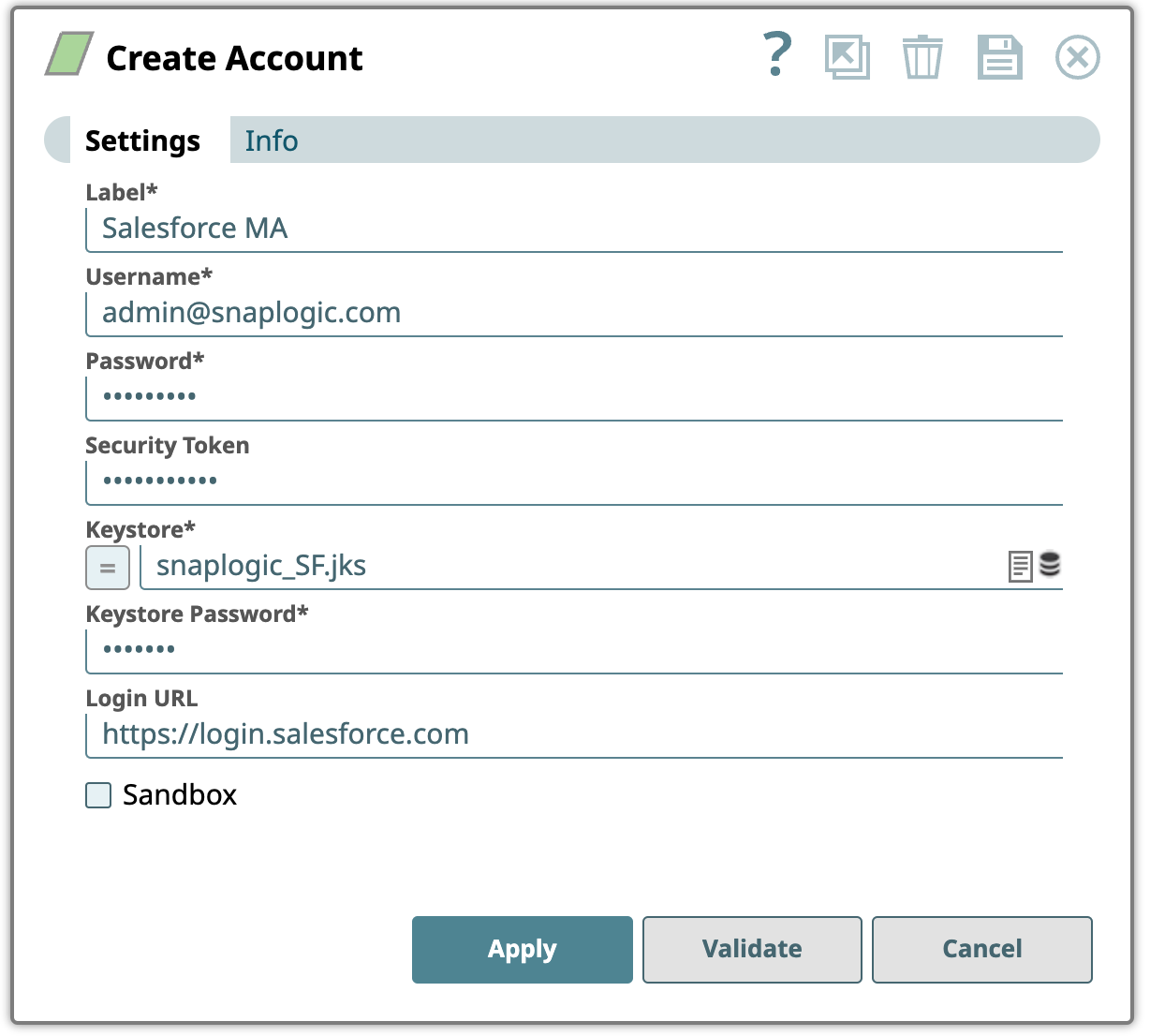
You can use this account type to connect Salesforce Snaps with data sources that use Salesforce Mutual Authentication account. This account allows Salesforce snaps to use Salesforce mutually authenticated transport layer security authentication providing an additional layer of security. Mutual Authentication is also known as two-way authentication, as both the client and the server authenticate and verify themselves using Client Certificate Authentication. Each time you connect to a Salesforce API, the server checks if the client's certificate is valid for the client's org, and also checks the validity of the session ID using the Username, Password, and the Security Token.
Mutual Authentication is intended for API use only and not for using any other services through the user interface (Salesforce.com).
Known Issue
Salesforce Mutual Authentication account fails on validation when you create the account for the first time and save it. As a workaround, clickApplyand then clickValidatefor successful validation of the account.
Account Settings
Field Name
Field Type
Description
Label*
Default Value: [None] Example: Salesforce account
String
Specify a name for the account instance.
Username*
Default Value:N/A Example:admin@sf.com
String
Specify a name for this account.
Password*
Default Value: N/A Example: ********@1
String
Specify the password for the account.
Security token
Default Value: N/A Example:1234
String
Specify a security token. To create a security token, log into your account in Salesforce and navigate to Personal Setup > My Personal Information > Reset My Security Token.
Keystore*
Default Value:N/A Example: x590_certificate.jks
String
Enter the location of the KeyStore file that can be in your SLDB or any other unauthenticated endpoints. The Keystore value must include intermediate certificates; however, including root certificate is optional.
If the file is in the same folder, you can enter only the filename. If not, you must enter the complete absolute path, for example, if the Keystore file “snaplogic_SF.jks” is in the projects/shared project of QA org and the pipeline is not in the same project, then you should enter: sldb:///QA/projects/shared/snaplogic_SF.jks
A relative path for Keystore file causes the account to fail if the pipeline is in global shared project and Keystore file is in another project. A relative path might not always work.
Enter yoursalesforce.comlogin URL if it is different from "https://login.salesforce.com/". Usually it is not required, but if you are using CipherCloud for Salesforce, you should enter the login URL issued by CipherCloud with the Sandbox checkbox deselected.
Breaking Change
Prior to 436patches25192 version, the Salesforce Mutual Authentication Account supported default Login URLs such as https://login.salesforce.com and https://test.salesforce.com. Starting from 436patches25192, this account no longer supports the default Login URLs—your existing pipelines using the Mutual Authentication Account with the default Login URLs might break. To prevent this breaking change, you must provide a valid Salesforce Login URL as part of your account configuration.
Sandbox
Default Value: Deselected
N/A
Select this option if the username is for a sandbox account or deselect if it is for a production account.
Troubleshooting
Error
Reason
Resolution
Keystore error
The Salesforce Mutual Authentication account fails if the Keystore file and pipeline are in different projects.
If the file is in the same folder, you can enter only the filename. If not, you must enter the complete absolute path.
Error occurred while executing request to Salesforce.com
The input view document data is not a Map.
Ensure that the input view document data is a map.
Client certificate error: unable to get local issuer certificate.
The certificate chain is incomplete or missing.
You should get the intermediate certificate to attach to the pem. For more information about creating creating certificate chain, see Salesforce Mutual Authentication Setup.
Unable to load Private Key.
Expects Private Key.
Follow the instructions in stack overflow link and update the encoded type of private key file using Notepad++.
When you use the default Login URL and validate the Account, it encounters a connection timeout error.
Provide the complete host name of the Salesforce instance for the Mutual Authentication Account.
Snap Pack History
Click to view/expand
Release
Snap Pack Version
Date
Type
Updates
February 2025
440patches30230
Latest
Implemented a redirect strategy for all Salesforce snaps to ensure valid URL redirection when Lightning URLs are used.
February 2025
main29887
Stable
Updated and certified against the current SnapLogic Platform release.
November 2024
439patches29230
Latest
Fixed the vulnerabilities in CXF library dependencies within the Salesforce Snap Pack to enhance security and ensure reliable functionality.
November 2024
439patches29014
Latest
Fixed an issue with the Salesforce Lookup, SOQL, and SOSL Snaps, where errors were not routed to the error pipeline when Route Error Data to Error View was enabled, and a referenced expression variable was missing in the upstream or pipeline parameters.
November 2024
main29029
Stable
Updated and certified against the current SnapLogic Platform release.
August 2024
438patches28607
Latest
Fixed an issue with theSalesforce PublisherSnap where an invalid session triggered infinite retries, resulting in many open file descriptors that eventually crashed the node.
August 2024
438patches28040
Latest
Fixed an issue with the Salesforce SOQL Snap where the URL encoding was improperly applied to sandbox instance URLs. Now, the Snap ensures URL sandbox instance URLs are properly encoded.
Redirections for legacy (non-enhanced) hostnames stop in production orgs and demo orgs. Production orgs get this release starting in January 2025.
Redirections for legacy (non-enhanced) hostnames stopped in sandboxes, Developer Edition orgs, patch orgs, scratch orgs, and Trailhead Playgrounds.
When deploying a new My Domain, including enhanced domains, Salesforce automatically redirects previous URLs. For detailed information, such as hostname formats for legacy (non-enhanced) domains, refer to the Prepare for the End of Redirections for Non-Enhanced Domains.
To align with Salesforce’s redirection changes for non-enhanced domains, the classic URL format (https://snaplogic--devqa.my.salesforce.com/) is no longer supported for Sandbox environments. As a result, any existing Salesforce pipelines using classic URLs will stop functioning as before.
Fixed an issue with the Salesforce Mutual Authentication Account where the 8443 port was not used while authorizing the account. Now, the access token request uses the 8443 port for authorizing the Mutual Authentication Account.
Breaking change
Prior to 436patches25192, the Salesforce Mutual Authentication Account supported default Login URLs such as https://login.salesforce.com and https://test.salesforce.com. From 436patches25192, this account no longer supports the default Login URLs—your existing pipelines using the Mutual Authentication Account with the default Login URLs might break.
To prevent this breaking change, you must provide a valid Salesforce Login URL as part of your account configuration.
February 2024
main25112
Stable
Enhanced the Salesforce Bulk Query Snap with expression support for the Include Deleted Records checkbox.
November 2023
435patches24747
Latest
Fixed an issue that caused the input stream to not close properly, which resulted in stale connections.
November 2023
435patches24368
Latest
Enhanced the performance of the Salesforce Bulk Query Snap with a new Maximum threads field. This field enables you to download query results simultaneously in multiple threads.
November 2023
435patches24006
Latest
Enhanced the Salesforce Read Snap by adding expression enablement to the following checkboxes:
Use PK chunking if supported
Include Deleted Records
November 2023
main23721
Stable
Updated and certified against the current SnapLogic Platform release.
August 2023
434patches23646
Latest
Fixed an issue where a long-running pipeline containing the Salesforce Subscriber Snap would suddenly stop responding.
August 2023
434patches22537
Latest
Improved the Salesforce Bulk Upsert Snap error messages by limiting the length of the reason displayed with the error.
August 2023
main22460
Stable
Updated and certified against the current SnapLogic Platform release.
May 2023
433patches21367
Latest
The Salesforce SOQL Snap now honors the selection of the Match Data Type checkbox when the value entered for Batch Size is greater than 50,000.
The Salesforce Read Snap now honors the selection of the Match Data Type checkbox if the Use PK chunking if supported checkbox is also selected.
May 2023
main21015
Stable
Upgraded with the latest SnapLogic Platform release.
February 2023
432patches20586
Latest
Fixed an issue with the Salesforce SOQL and Salesforce Read Snaps where the Match Data Type checkbox selection was not honored if the Salesforce API field was set to Bulk API.
February 2023
432patches20393
Latest
The Display null or empty values as null checkbox in the following Salesforce Snaps enable you to control the display of empty string and null data as null in the output preview.
The Salesforce Account no longer validates an invalid URL but fails with an error:
Error processing table usr__c = ErrorDto{failure='Failed to perform AutoSync for table usr__c
February 2023
432patches20145
Latest
Fixed an issue with the Salesforce Read Snap that was causing an error for the Time data type.
February 2023
432patches20087
Latest
The Salesforce Create, Update, and Upsert Snaps now include an Apply active assignment rules checkbox so you can control whether to use assignment rules for the selected object
February 2023
432patches20008
Latest
Fixed an issue with the Salesforce Read Snap where using the bulk API request would fail due to column specification.
Added support to use PK chunking on any batch size with the bulk API request and to automatically disable PK chunking if it is known that it cannot be done
February 2023
main19844
Stable
Upgraded with the latest SnapLogic Platform release.
November 2022
main18944
Stable
Upgraded with the latest SnapLogic Platform release.
CometD version upgrade from 5.0.9 to 7.0.6 (latest).
The simplified logging provides useful diagnostic information without logging any sensitive data.
The Snap asynchronously makes callbacks or listens to the CometD API to identify and respond to specific events.
The Snap processes the most recent message so that it can send that replay ID if there is a need to resubscribe. If the server responds with an invalid replay ID, the Snap automatically sets the Replay ID value to -2 to get all available messages.
Upgraded the Cometd version from 5.0.9 to the latest 7.0.6 version.
Fixed an issue where the Snap reported an error and stopped only at the next resubscribe attempt when it encountered the daily limit exceeded error. Now, the Snap displays the error and stops immediately when it encounters the daily limit exceeded error.
Simplified the logging that provides useful diagnostic information without logging any sensitive data.
Enhanced the Snap design to make the callbacks or listeners asynchronously by the Cometd API when there is a specific event, and the Snap responds accordingly.
Enhanced the tracking of replay ID of the most recent message processed so that Snap can send that replay ID if there is a need to resubscribe. If the server responds that the replay ID is invalid, Snap automatically sets theReplay IDvalue to-2to get all available messages.
Upgraded with the latest SnapLogic Platform release.
4.28 Patch
428patches14355
Latest
Fixed an issue with Salesforce Snaps where the Service Version could not be retrieved from SFDC due to a blocked URL, failing the Snap execution.
4.28
main14627
Stable
Upgraded with the latest SnapLogic Platform release.
4.27 Patch
427patches14079
Latest
Fixed an issue with the Salesforce Subscriber Snap where the Snap was unable to re-subscribe to a topic if it did not receive any message for 72 hours —stopped and displayed an error message. With this fix, the Snap automatically sets the Replay ID value to -2 when:
the specified Replay ID is invalid or outside the retention window.
the most recently received Replay ID for an event is outside the 72-hour retention window.
4.27 Patch
427patches13944
Latest
Fixed an issue with Salesforce accounts, where an account password containing special characters and an empty security token was not properly encoded and the account was not validated.
4.27 Patch
427patches13789
Latest
Fixed the following issues with Salesforce Snaps:
High memory use due to leaked resources.
Hung Pipelines due to blocked threads.
4.27
main12833
Stable
Added Salesforce Mutual Authentication Account to Salesforce Snap Pack that provides an additional layer of security while authentication. Both the client and server authenticate themselves using Client Certificate Authentication. This account is not supported for Salesforce Subscriber and Salesforce Publisher Snaps.
Extended the supportofSalesforce OAuth2 Account to all the Salesforce Snaps in addition to the Salesforce Bulk Snaps.
Revised the name of Salesforce Attachment Download to Salesforce Download Snap. Enhanced this Snap with a new field File Type to support download of attachments from Salesforce by passing Content Data ID in addition to the Attachment ID.
Updated the default Salesforce API Service Version to 52.0 for the following Snaps:
Enhanced the following Snaps to support Pipeline parameters only for expression fields, while the input data parameters are not supported for expression fields.
Enhanced the Salesforce Subscriber Snap with improved resilience to network failures and fixed an issue with duplicate documents.
4.26
main11181
Stable
Upgraded with the latest SnapLogic Platform release.
4.25 Patch
425patches10182
Latest
Fixed an issue with the Salesforce Read Snap where the retry fields do not work as expected when a Pipeline has more than ten Snaps.
4.25 Patch
425patches9609
Latest
Enhanced the Salesforce Read Snap to allow you to add an optional second output view that exposes the schema of the target object as the output document. The output view of the Snap has a minimum of one output and a maximum of two outputs.
4.25
main9554
Stable
Enhanced the Salesforce Upsert Snap to support CSV payload using the new field Bulk Content Type in Bulk API mode as Salesforce API has recently been supporting CSV payload as well. Earlier, this Snap supported only XML data type; you can now select CSV content type from the Bulk Content Type drop-down list. The default content type is set to XML to preserve backward compatibility. This enhancement also addresses the null values issue during Bulk API mode.
Enhanced the Snaps in the Salesforce Snap Pack by updating the field labels to title case. If you have existing Pipelines using Salesforce Snaps that include the field names in the error messages, you must update those Pipelines to use the new field labels.
This Salesforce Snap patch contains an issue affecting the Salesforce Subscriber and Salesforce Publisher Snaps. If you do not use these Snaps in your Pipelines, then you can use this patch version. Else, we recommend you to not use this patch version as Pipelines will fail. We will fix this issue soon in an upcoming patch.
4.24
main8556
Stable
Upgraded with the latest SnapLogic Platform release.
Upgraded with the latest SnapLogic Platform release.
4.22
main6403
Stable
Upgraded with the latest SnapLogic Platform release.
4.21 Patch
salesforce8829
Latest
Fixed the Salesforce Create, Update, Bulk Create, Bulk Update, and Bulk Upsert Snaps, enabling you to upload files containing duplicate values across multiple fields.
4.21
snapsmrc542
Stable
Upgraded with the latest SnapLogic Platform release.
4.20 Patch
salesforce8814
Latest
Fixed the Salesforce Create, Update, Bulk Create, Bulk Update, and Bulk Upsert Snaps, enabling you to upload files containing duplicate values across multiple fields.
4.20 Patch
salesforce8797
Latest
Fixed the Salesforce Subscriber Snap wherein the Salesforce Subscriber and Mapper Snap combination generates Null output for Array object type.
Enhanced the Salesforce Subscriber Snap to capture Change Data Capture (CDC) events.
4.18
snapsmrc523
Stable
Upgraded with the latest SnapLogic Platform release.
4.17 Patch
salesforce7474
Latest
Added Order by clause and Limit clause properties to the Salesforce Reader Snap to fix an issue wherein the Snap throws an error while fetching records.
4.17
ALL7402
Latest
Pushed automatic rebuild of the latest version of each Snap Pack to SnapLogic UAT and Elastic servers.
4.17
snapsmrc515
Latest
Added the Snap Execution field to all Standard-mode Snaps. In some Snaps, this field replaces the existing Execute during preview check box.
4.16 Patch
salesforce6889
Latest
Added two new properties, Number of retries and Retry interval, to the Salesforce Read, SOQL, Publisher, and Subscriber Snaps. These properties let you handle retry attempts and intervals in case of a network failure.
4.16
snapsmrc508
Stable
Added two new Snaps:
Salesforce Publisher: Publish Salesforce platform event records to a given event custom sObject (Salesforce Object).
Salesforce Subscriber: Subscribe to Salesforce platform event records for a given event custom sObject.
4.15 Patch
salesforce6405
Latest
Fixed an issue with resource leak in PK Chunking in Salesforce Read and SOQL Snaps.
4.15 Patch
salesforce6349
Latest
Fixed an issue with the Salesforce SOQL Snap timing out while waiting for a connection from the pool.
4.15
snapsmrc500
Stable
Upgraded with the latest SnapLogic Platform release.
4.14 Patch
salesforce5670
Latest
Fixed the Salesforce SOQL Snap that fails to execute if the parameter values of a SOQL query expression contain the WHERE clause.
4.14
snapsmrc490
Stable
Upgraded with the latest SnapLogic Platform release.
4.13
snapsmrc486
Stable
Fixed an issue where the Salesforce Read Snap fails to download the PK-Chunking CSV file due to network failure or running out of disk space.
Fixed an issue where theSalesforce Lookup Snap does not match the datatype with the Bulk API; for instance, boolean data returns string.
Fixed an issue where the Salesforce SOQL Snap does not preview data in pipelines.
Fixed an issue where PK Chunking files are not deleted from the temp directory.
4.12 Patch
salesforce4839
Latest
Fixed a defect that occurs when downstream Snaps are slow in processing documents downloaded from SFDC.
4.12 Patch
salesforce4773
Latest
Added a new option in Advanced properties - "Validate record count downloaded in Bulk API" that compares the number of records processed vs downloaded and routes output to Error View (if Error View is enabled) if there is a mismatch.
4.12
snapsmrc480
Stable
Updated Salesforce SOQL and Lookup Snaps to ensure that they are consistent with SnapLogic guidelines of writing Snap data exceptions to error views and continuing to process next documents vs. hard stopping.
Enhanced the Salesforce read operations for the Read, SOQL, and SOSL Snaps to display the original Salesforce error cause, reason, and resolution.
4.11 Patch
salesforce4299
Latest
Fixed an issue wherein the Salesforce SOQL Snap did not get an input stream from the next records URL.
Fixed an issue with the Salesforce SOQL Snap querying deleted records using Bulk API.
4.11
snapsmrc465
Stable
Polling timeoutproperty's default value increased to 3000 from 300 for Salesforce Lookup, Salesforce Poller, Salesforce Read, and Salesforce SOQL Snaps.
4.10 Patch
salesforce4005
Latest
Salesforce Poller Snap: Includes the success field in the output.
4.10
snapsmrc414
Stable
Upgraded with the latest SnapLogic Platform release.
4.9.0 Patch
salesforce3218
Latest
Fixed the error in PK Chunking when a downstream Snap is blocking the pipeline
4.9.0 Patch
salesforce3247
Latest
Addressed an issue withSalesforce Poller Snap causing JSON Formatter to throw ConcurrentModificationException.
4.9.0 Patch
salesforce3225
Latest
Addressed a null pointer exception in the Salesforce Update Snap. This exception was present in both salesforce3082 and salesforce3122.
4.9
snapsmrc405
Stable
Updated the Salesforce Create, Batch Create, Delete, Poller, Update and Upsert Snaps with Pass through property.
4.8.0 Patch
salesforce2884
Latest
Addressed an issue with inconsistent behavior between Preview and Execution.
Addressed an issue with Salesforce SOQL Snap failing to download PK-Chunking.
4.8
snapsmrc398
Stable
Updated the Salesforce Lookup Snap with Correlation ID property. This property is an ID field name which the Snap uses to correlate input document to the output record when users want to pass through input data to the output view.
Updated the Salesforce Read Snap with Output field limit and Output field offset properties. Output field limit is the number of fields to return in the order of Salesforce describe object field index. Output field offset defines a starting field index for the output fields.
Info tab added to accounts.
4.7.0 Patch
salesforce2284
Latest
Added log to troubleshoot a deploy issue.
4.7.0 Patch
salesforce2255
Latest
Addressed SFDC SOQL Snap routing to the error view & validate PK Chunking record numbers.
4.7.0 Patch
salesforce2244
Latest
Addressed possible leak with threads waiting to download PK Chunking responses.
4.7.0 Patch
salesforce2218
Latest
SFDC SOQL Snap route to the error view & validate PK Chuning record numbers.
4.7.0 Patch
salesforce2209
Latest
SOQL Snap now correctly routes to the error view & validates PK Chunking record numbers.
4.7
snapsmrc382
Stable
Updated the Salesforce SOQL, Read, & Lookup Snaps with Match data type field.
Updated the Salesforce Upsert, Update, Create and Delete Snaps with 'Standardize error output' field.
4.6.0 Patch
salesforce1931
Latest
Implemented a new property "Match data type in XML"
Implemented a new global.properties entry "SFDC_SESSION_TIMEOUT_MINUTES" so that users can reduce the frequency of logins.
4.6
snapsmrc362
Stable
Doc Enhancement: Examples added to Salesforce Snap documentation.
Resolved an issue in Salesforce Snaps that prevented extraction of access tokens.
4.5.1
salesforce1633
Stable
Salesforce Read Snap is updated to support Output fields and Where clause specifications. For more information, see Salesforce Read.
Salesforce Read & SOQL Snaps are updated to support JSON representation of Bulk API result data and a parsing issue encountered (in Bulk API mode) has been rectified.
Fixed errors around upload and output preview for Salesforce Wave Analytics Snap.
4.5
snapsmrc344
NA
Latest
Pass through and Ignore empty results added to Salesforce SOQL, Read and SOSL Snaps.
Resolved an issue in Salesforce Batch Create Snap to appropriately create multiple records in REST API.
4.4.1
Stable
Resolved an issue with Connection pool times out with Salesforce Snaps.
Salesforce Lookup: Resolve a 'The session ID or OAuth token used has expired or is invalid' exception when running in an Ultra Task.
4.4
Stable
Resolved an issue with Salesforce Query returning inconsistent result sets.
4.3.2
Stable
SalesForce Lookup Snap: Implemented Pass-through on no lookup match property
Resolved an issue with Salesforce Upsert Snap failing with an error 'not valid for the type xsd:double'.
Resolved an issue with Salesforce SOQL Snap returning fewer results than SFDC returns.
Performance improvements made to Salesforce Read/SOQL Snaps with Bulk API in PK Chunking mode.
4.3
NA
NEW! Salesforce Batch Create added in this release.
Salesforce Wave ID field suggestions now include upstream schema.
Resolved an issue in Salesforce Lookup Snap failing to generate an output schema if more than 50 records are found.
4.22
NA
NEW! Salesforce Batch Create added in this release.
Resolved an issue with Salesforce Wave analytics throwing an error when metadata contained a hash symbol in number format.
Resolved an issue the failing to validate the account if the password contained a colon (:).
Salesforce Snaps now default to the latest Salesforce API version.
Create/Update/Upsert Snaps did not support related object mappings.
Salesforce Upsert - intermittently throws ViewChannelException since document was send to the closed output view
Salesforce Delete not using passthrough platform service
Salesforce Account: added custom login URL (for support of CipherCloud)
Salesforce Read: various updates for errors and performance improvements for > 1m rows being retrieved in Bulk API
Salesforce Write in Bulk API: enhanced batching support
NEW! Salesforce Wave Analytics added in this release.
Salesforce Upsert: External ID field is now suggestible.
Salesforce Read & Salesforce SOQL now accept 200 as a batch size.
Snaps with a Polling timeout property no longer have a maximum timeout limit.
Addressed the following issues:
Salesforce Account: Could not login to Salesforce, Endpoint Exception Error message is displayed.
Salesforce Analytics null pointer
Salesforce Attachment: NPE is displayed for Invalid Account.
The account settings for Salesforce.com now gives you the choice of either entering a token or entering an IP while list address range. If you need to create a token, you will need a non-admin user to generate the token for SnapLogic.
The Security Token is no longer required for Salesforce.com accounts.