Hadoop Directory Browser
- Kalpana Malladi
- Rakesh Chaudhary
- Lakshmi Manda (Deactivated)
On this Page
Snap type | Read | |||||||
|---|---|---|---|---|---|---|---|---|
Description | This Snap browses a given directory path in the Hadoop file system (using the HDFS protocol) and generates a list of all the files in the directory and subdirectories. Use this Snap to identify the contents of a directory before you run any command that uses this information. Currently, the Hadoop Directory Browser Snap supports URIs using HDFS & ABFS (Azure Data Lake Storage Gen 2 ) protocols. For example, if you need to iteratively run a specific command on a list of files, this Snap can help you view the list of all available files.
Input and Output
| |||||||
| Prerequisites | The user executing the Snap must have at least Read permissions on the concerned directory. | |||||||
| Support and limitations | Works in Ultra Tasks. | |||||||
| Account | This Snap uses account references created on the Accounts page of the SnapLogic Manager to handle access to this endpoint. This Snap supports Azure Data Lake Gen2 OAuth2 and Kerberos accounts. | |||||||
| Views |
| |||||||
Settings | ||||||||
Label | Required. The name for the Snap. You can modify this to be more specific, especially if you have more than one of the same Snap in your pipeline. | |||||||
Directory | The URL for the data source (directory). The Snap supports both HFDS and ABFS(S) protocols. Syntax for a typical HDFS URL: Syntax for a typical ABFS and an ABFSS URL: When you use the ABFS protocol to connect to an endpoint, the account name and endpoint details provided in the URL override the corresponding values in the Account Settings fields. Default value: [None] | |||||||
| File filter | Required. The GLOB pattern to be applied to select the contents (files/sub-folders) of the directory. You cannot recursively navigate the directory structures. The File filter property can be a JavaScript expression, which will be evaluated with the values from the input view document. Example:
Default value: [None] | |||||||
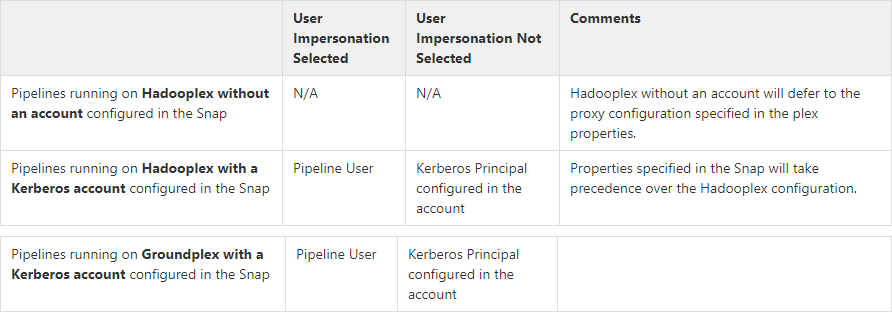
| User Impersonation | Select this check box to enable user impersonation. For more information on working with user impersonation, click the link below. Select this check box to enable user impersonation. For encryption zones, use user impersonation. Default value: Not selected For more information on working with user impersonation, click the link below. Generic User Impersonation Behavior When the User Impersonation check box is selected, and Kerberos is the account type, the Client Principal configured in the Kerberos account impersonates the pipeline user. When the User Impersonation option is selected, and Kerberos is not the account type, the user executing the pipeline is impersonated to perform HDFS Operations. For example, if the user logged into the SnapLogic platform is operator@snaplogic.com, the user name "operator" is used to proxy the super user. User impersonation behavior on pipelines running on Groundplex with a Kerberos account configured in the Snap
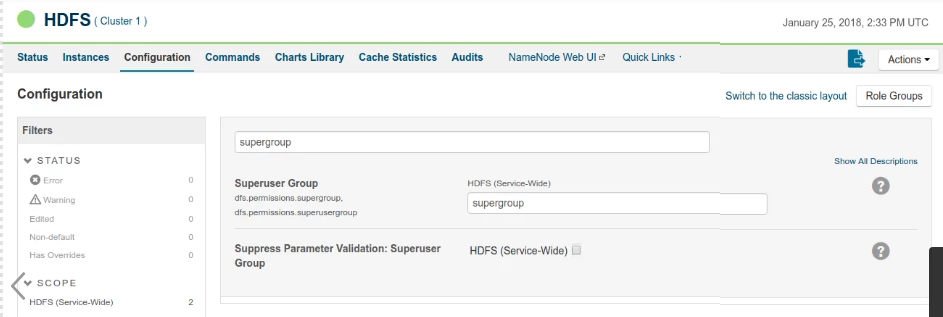
For non-Kerberised clusters, you must activate Superuser access in the Configuration settings.
HDFS Snaps support the following accounts:
When an account is configured with an HDFS Snap, user impersonation settings have no impact on all accounts, except the Kerberos account. | |||||||
| Ignore empty result | If selected, no document will be written to the output view when the result is empty. If this property is not selected and the Snap receives an input document, the input document is passed to the output view. If this property is not selected and there is no input document, an empty document is written to the output view. Default value: Selected | |||||||
Snap Execution | Select one of the following three modes in which the Snap executes:
Default Value: Execute only | |||||||
Troubleshooting
Writing to S3 files with HDFS version CDH 5.8 or later
When running HDFS version later than CDH 5.8, the Hadoop Snap Pack may fail to write to S3 files. To overcome this, make the following changes in the Cloudera manager:
- Go to HDFS configuration.
- In Cluster-wide Advanced Configuration Snippet (Safety Valve) for core-site.xml, add an entry with the following details:
- Name: fs.s3a.threads.max
- Value: 15
- Click Save.
- Restart all the nodes.
- Under Restart Stale Services, select Re-deploy client configuration.
- Click Restart Now.
Example
Hadoop Directory Browser in Action
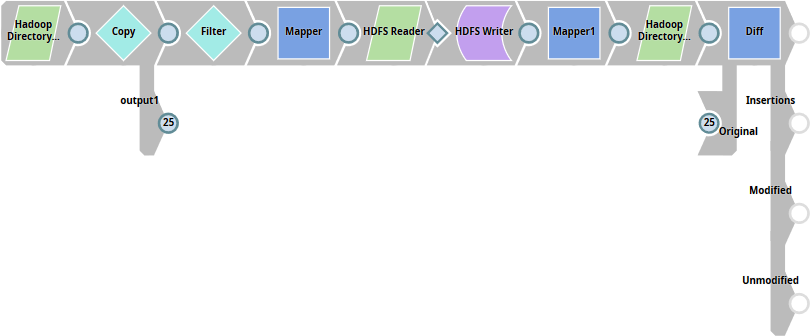
The Hadoop Directory Browser Snap lists out the contents of a Hadoop file system directory. In this example, we shall:
- Read the contents of a Hadoop file system directory using the Hadoop Directory Browser Snap.
- Save the directory file list information as a file in the same directory.
- Run the Hadoop Directory Browser Snap again to retrieve the updated list of files.
- Compare and check whether the number of files in the directory has increased by 1 as expected.
If the pipeline executes successfully, the second execution of the Hadoop Directory Browser will list out one additional file: the one we created using the output of the first execution of the Hadoop Directory Browser Snap.
How This Works
The table below lists the tasks performed by each Snap and documents the configuration details required for each Snap.
| Snap | Purpose | Configuration Details | Comments |
|---|---|---|---|
| Hadoop Directory Browser Snap 1 | Retrieves the list of files in the identified HDFS directory. | Directory: Enter here the address of the directory whose file-list you want to view. | |
| Copy | Creates a copy of the output. | We will use this copy later when we compare this output with the final output created after the pipeline is executed. | |
| Filter | Filters the file-list returned by the upstream Snap using specific filter criteria. | Filter expression: $Name == '<the file you want to use to create the new file>' Example: 'test_file.csv' | This helps you select one file from the list of files returned by the Hadoop Directory Browser Snap. |
| Mapper | Maps column headers in the retrieved file-list to those in the file selected using the Filter Snap. | Expression: $Path.substr(0,70) Expression: $Name | This enables you to create the list of directories and file names that will populate the new fie you will create further downstream. |
| HDFS Reader | Reads mapped data from the Mapper Snap and makes it available to be written as a new file. | Directory: $Directory File: $Filename | |
| HDFS Writer | Writes (Creates) a new file in the specified directory using the data made available upstream. | Directory: The address of the HDFS file system directory where you want to create the new file. For our example to work, this should be the same directory used in the first Snap. File: The name of the new file. It's typically a good idea to include some kind of logic in the file name, so there's no need for manual intervention. We have gone for a randomizer. | |
| Mapper | Shortens the name of the new file, which could be very long, given that we have used a randomizer to generate a unique name for the file. | Expression: $filename.substr(71,50) Target Path: $filename | This reduces the length of the file name to 20 letters or less, starting from the 71st character from the left. This removes most of the common strings that form the path name and saves primarily that part of the path string that uniquely identifies each file. |
| Hadoop Directory Browser | Retrieves the list of files in the updated HDFS directory. | Directory: Enter here the address of the directory in which the new file was created. For our example to work, this should be the same directory used in the first Snap. | |
| Diff | Compares the output of the two Hadoop Directory Browser Snaps. If there is one extra file in the final Hadoop Directory Browser Snap, the example works! | Drag and drop the connection point from the Copy version of the initial file list to the Original connection point associated with the Diff Snap. |
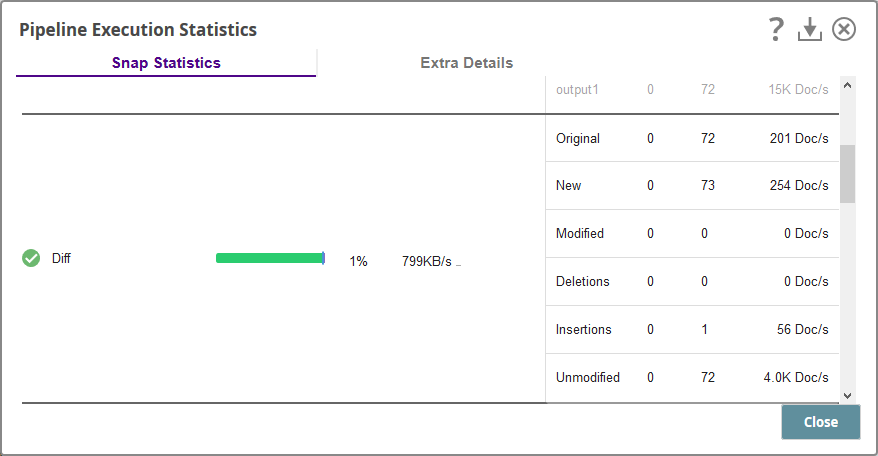
Run the pipeline. Once execution is done, click the Check Pipeline Statistics button to check whether it has worked. You should find the following changes:
- Original: N Files (Depending on the number of files available in the concerned HDFS directory)
- New: N+1 (This is the new file created using the output from the Hadoop Directory Browser Snap.)
- Modified: 0
- Deletions: 0
- Insertions: 1 (This is the new file created using the output from the Hadoop Directory Browser Snap.)
- Unmodified: N (Depending on the number of files available in the concerned HDFS directory)
Downloads
Have feedback? Email documentation@snaplogic.com | Ask a question in the SnapLogic Community
© 2017-2025 SnapLogic, Inc.