ELT Filter
- Ankur Parekh
- Mohammed Iqbal
- Gouri Bhagchandani (Deactivated)
- Anand Vedam
In this article
An account for the Snap
You must define an account for this Snap to communicate with your target CDW. Click the account specific to your target CDW below for more information:
Overview
Use this Snap to add a WHERE clause in your SQL query. The WHERE clause is used to create filters/conditions. The Snap can also be used an an equivalent of a HAVING clause in the context of aggregate operations. This Snap also allows you to preview the result of the output query. You can validate the modified query using this preview functionality.
Prerequisites
None.
Limitation
ELT Snap Pack does not support Legacy SQL dialect of Google BigQuery. We recommend that you use only the BigQuery's Standard SQL dialect in this Snap.
Known Issues
In any of the supported target databases, this Snap does not appropriately identify nor render column references beginning with an _ (underscore) inside SQL queries/statements that use the following constructs and contexts (the Snap works as expected in all other scenarios):
WHEREclause (ELT Filter Snap)WHENclauseONcondition (ELT Join, ELT Merge Into Snaps)HAVINGclauseQUALIFYclause- Insert expressions (column names and values in ELT Insert Select, ELT Load, and ELT Merge Into Snaps)
- Update expressions list (column names and values in ELT Merge Into Snap)
- Secondary
ANDcondition Inside SQL query editor (ELT Select and ELT Execute Snaps)
Workaround
As a workaround while using these SQL query constructs, you can:
- Precede this Snap with an ELT Transform Snap to re-map the '_' column references to suitable column names (that do not begin with an _ ) and reference the new column names in the next Snap, as needed.
- In case of Databricks Lakehouse Platform where CSV files do not have a header (column names), a simple query like
SELECT * FROM CSV.`/mnt/csv1.csv`returns default names such as _c0, _c1, _c2 for the columns which this Snap cannot interpret. To avoid this scenario, you can:- Write the data in the CSV file to a DLP table beforehand, as in:
CREATE TABLE csvdatatable (a1 int, b1 int,…) USING CSV `/mnt/csv1.csv`where a1, b1, and so on are the new column names. - Then, read the data from this new table (with column names a1, b1, and so on) using a simple SELECT statement.
- Write the data in the CSV file to a DLP table beforehand, as in:
- In case of Databricks Lakehouse Platform, all ELT Snaps' preview data (during validation) contains a value with precision higher than that of the actual floating point value (float data type) stored in the Delta. For example, 24.123404659344 instead of 24.1234. However, the Snap reflects the exact values during Pipeline executions.
Snap Input and Output
| Input/Output | Type of View | Number of Views | Examples of Upstream and Downstream Snaps | Description |
|---|---|---|---|---|
| Input | Document |
|
| The SQL query in which you want to add the WHERE clause. |
| Output | Document |
|
| The modified SQL query with the WHERE clause and the condition. |
Snap Settings
SQL Functions and Expressions for ELT
You can use the SQL Expressions and Functions supported for ELT to define your Snap or Account settings with the Expression symbol = enabled, where available. This list is common to all target CDWs supported. You can also use other expressions/functions that your target CDW supports.
| Parameter Name | Data Type | Description | Default Value | Example |
|---|---|---|---|---|
| Label | String | Specify a name for the Snap. You can modify this to be more specific, especially if you have more than one of the same Snap in your pipeline. | ELT Filter | GRADE_RECORD |
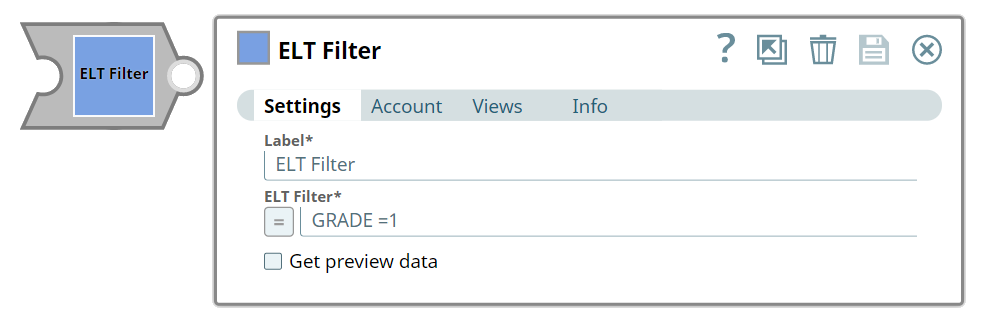
| ELT Filter | String | Required. The condition for the WHERE clause. You can also use Pipeline parameters in this field to bind values. However, you must be careful to avoid SQL injection. See Preventing SQL Injection for details. | N/A | GRADE = 1 GENDER = 'MALE' |
| Get preview data | Check box | Select this checkbox to include a preview of the query's output. The Snap performs limited execution and generates a data preview during Pipeline validation. In the case of ELT Pipelines, only the SQL query flows through the Snaps but not the actual source data. Hence, the preview data for a Snap is the result of executing the SQL query that the Snap has generated in the Pipeline. The number of records displayed in the preview (upon validation) is the smaller of the following:
Rendering Complex Data Types in Databricks Lakehouse Platform Based on the data types of the fields in the input schema, the Snap renders the complex data types like map and struct as object data type and array as an array data type. It renders all other incoming data types as-is except for the values in binary fields are displayed as a base64 encoded string and as string data type. | Not selected | Selected |
Preventing SQL Injection
You can pass Pipeline parameters as values in an SQL expression; however, if you do not phrase the expression properly it can lead to the parameter's name being bound as a value in the database. This potentially incorrect information being inserted into the database is known as SQL injection. It is thus necessary to take precautions when including Pipeline parameters in your SQL expression to prevent SQL injection. Based upon the intended use of the Pipeline parameter, use one or both the following methods to prevent accidental SQL injection:
Method-1: Simple Substitutions
You can reference the Pipeline parameter directly with a JSON-path without enabling expressions.
For example, if you want to use the Pipeline parameter, name, which contains the value of a column in the ELT Filter field:
colname = _name
Method-2: Dynamic Substitutions
You must enable expressions when using Pipeline parameters for dynamic substitutions. Format the SQL expression, except the Pipeline parameter's reference, as a string.
For example, if you want to use the Pipeline parameter, name, which contains the value of a column in the ELT Filter field:
_columnname + “= _name”
The Snap evaluates the expression and also carries out path substitutions.
Here is how it works
The Snap pre-processes the query to extract any JSON-Paths and converts them to bound parameters. For example, consider the following query:
_columnname + “= _name”
The Snap converts this query into the following before turning it into a prepared statement for the database:
colname = ?
The Snap evaluates the JSON-Path to get the value to bind the Pipeline parameter in the prepared statement.
Using escape characters
When expressions are disabled, use \ as an escape character to treat underscore (_) as a string.
For example:
colname = \_name
Troubleshooting
| Error | Reason | Resolution |
|---|---|---|
Syntax error when database/schema/table name contains a hyphen (-) such as in (CDW: Azure Synapse) | Azure Synapse expects any object name containing hyphens to be enclosed between double quotes as in "<object-name>". | Ensure that you use double quotes for every object name that contains a hyphen when your target database is Azure Synapse. For example: default."schema-1"."order-details". |
Examples
Performing Multiple Operations on the Same Table
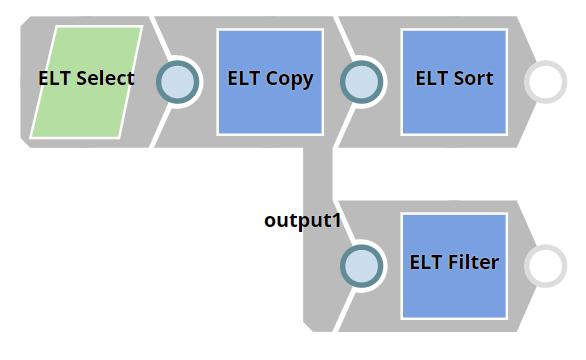
We need a SELECT query with suitable clauses/operators for the intended operation. We can use separate Pipelines to build each query. Alternatively, we can also use the ELT Copy Snap to create multiple copies of the initial SELECT query and then use suitable Snaps for the intended operations. In this example, we want to sort the records in the table and filter the records in the table. To sort the records, we need a query with the ORDER BY clause. To filter records, we need a query with the WHERE clause. This Pipeline shows how we can use the ELT Copy, ELT Sort, and ELT Filter Snaps to accomplish these tasks.
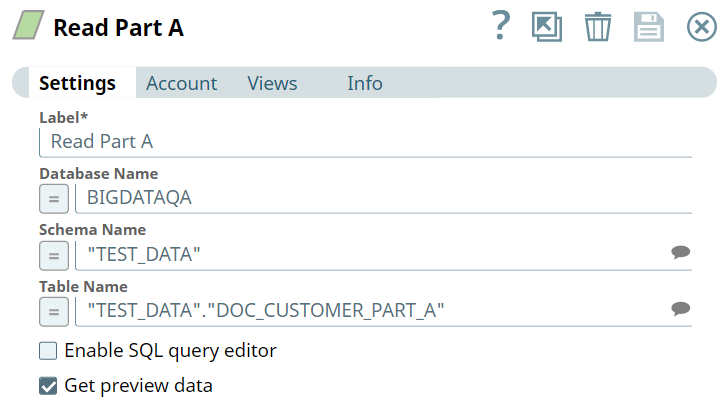
First, we build a SELECT query to read the target table. To do so, we can use an ELT Select Snap, in this example: Read Part A. This Snap is configured to output a SELECT * query to read the target table in the database. Additionally, this Snap is also configured to show a preview of the SELECT query's execution:
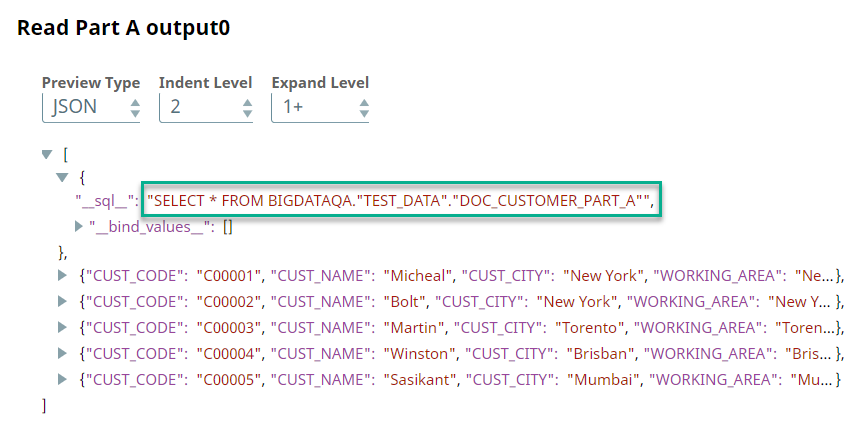
A preview of the output from the ELT Select Snap is shown below:
Then, we add an ELT Copy Snap to the ELT Select Snap, so that the output of the ELT Select Snap is replicated. Each of the output views in the ELT Copy Snap contains the following output:
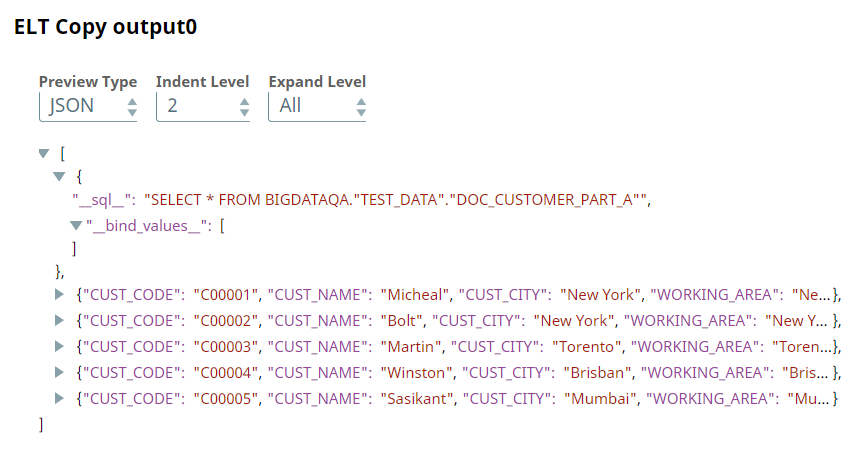
We can connect the appropriate Snaps to each of the ELT Copy Snap output views. In this example, we want to sort the records and filter them. So we add the ELT Sort Snap to one of the output views and the ELT Filter Snap to the other output view.
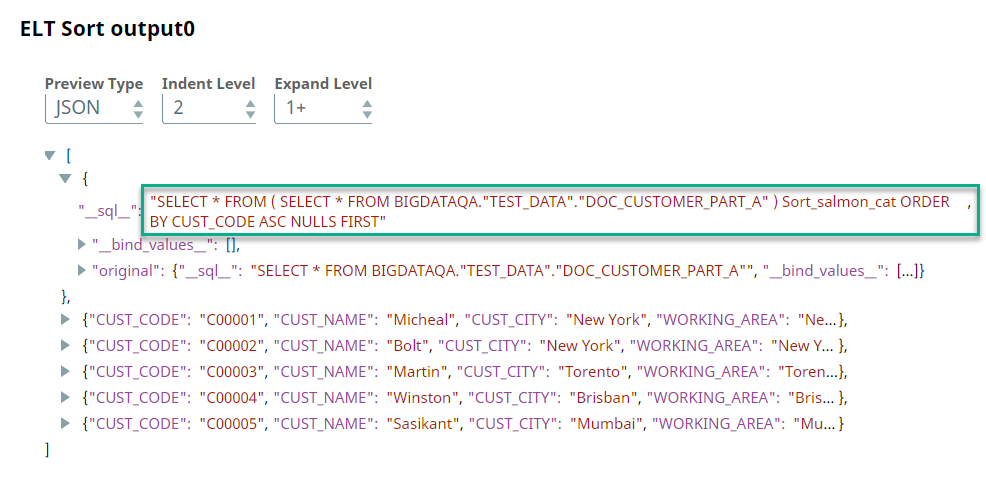
We use the following configuration for the ELT Sort Snap, since we want to sort the table records based on the values in the CUST_ID column in the ascending order.
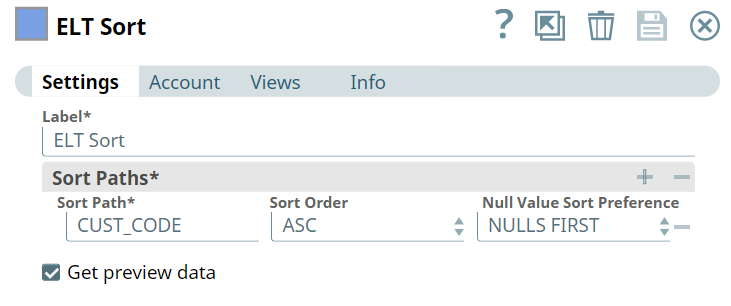
This Snap builds the following query based on this configuration:
Since we want to filter the records based on the value in the GRADE column in the table, we configure the ELT Filter Snap to do so:
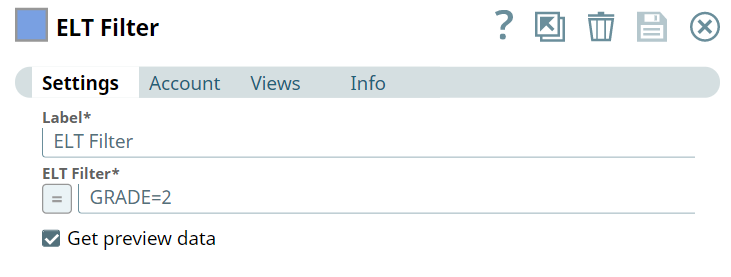
This Snap builds the following query based on this configuration:
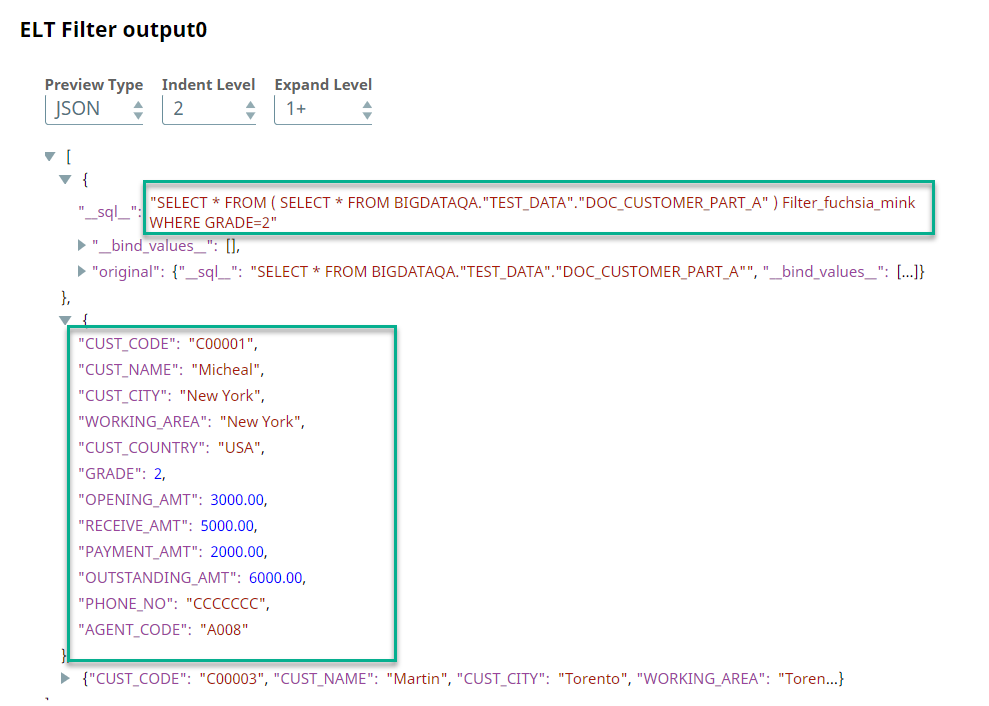
We can also add ELT Insert-Select Snaps downstream of these Snaps and write the result of the queries into other tables.
Downloads
Important Steps to Successfully Reuse Pipelines
- Download and import the Pipeline into SnapLogic.
- Configure Snap accounts as applicable.
- Provide Pipeline parameters as applicable.
Snap Pack History
Release | Snap Pack Version | Date | Type | Updates |
|---|---|---|---|---|
| February 2025 | 440patches30341 | Latest | Fixed an issue with the ELT Merge Into Snap where the Snap fails to perform the MERGE INTO operation on the RedShift target tables with the error - Failed to set search_path when the specified target Database schema is not one of the default schemas ("$user”, public). | |
| February 2025 | main29887 | Stable | Updated and certified against the current SnapLogic Platform release. | |
| November 2024 | 439patches29443 | Latest | Fixed an issue with the ELT Merge Into Snap where the Snap fails to perform the MERGE INTO operation on the RedShift target tables with the error - There were no target table columns found. when the specified target Database schema is not one of the default schemas ("$user”, public). This issue did not exist before the May 2024 release. | |
| November 2024 | main29029 | Stable | Updated and certified against the current SnapLogic Platform release. | |
| August 2024 | 438patches28010 | Latest | The ELT Insert-Select Snap no longer fails to execute SQL statements that contain multiple multiline comment character pairs (/* and */) and/or multiple quoted substrings. Quoted substrings refer to schema, database, table, or column identifiers, which are delimited to allow special characters.
| |
| August 2024 | main27765 | Stable | Upgraded the jOOQ library for the ELT Snap Pack from v3.9.1 to v3.17.x. | |
| May 2024 | 437patches27372 | Latest | Enhanced the pipeline execution statistics of ELT Insert-Select Snap to be displayed in its output view and to allow downloading detailed stats as a JSON file that includes additional statistics ( | |
| May 2024 | 437patches27246 | Latest | Enhanced the ELT Execute Snap to display SQL execution statistics in the pipeline execution statistics and the output view of the Snap for all SQL statements executed. The Snap also allows you to download detailed stats as a JSON file that includes additional statistics ( | |
| May 2024 | 437patches26846 | Latest | Fixed the issue with the ADLS Gen 2 account connection where some conflicts between internally used Azure libraries prevented the ELT Load Snap from reading files. | |
Fixed an issue with the ELT Merge Into Snap where the Snap’s SELECT SQL statement could not fetch the target tables information from the PG_TABLE_DEF catalog table of the Amazon Redshift instance.
PG_TABLE_DEF is a Redshift system catalog table that contains information about the tables including table names, column names, data types among their other metadata. | ||||
| Enhanced the ELT Load Snap to support loading data from nested AVRO, JSONLines, ORC, or Parquet files in Azure storage to the target tables in a Databricks Lakehouse Platform (DLP) instance. Only two Load actions are supported: Drop and create table and Append table. | ||||
| May 2024 | main26341 | Stable | Fixed an issue where the ELT Merge Into Snap failed to load data into the Google BigQuery target table because of the error: | |
| February 2024 | 436patches25953 | Latest | Enhanced the ELT Load Snap’s capabilities to allow loading flat and nested data sets (from canonical and non-canonical formats) from your Parquet files to the target tables in Snowflake. Learn more about the usage of this feature at Load data from Parquet files and in the following example Pipelines: | |
| February 2024 | main25112 | Stable | Updated and certified against the current SnapLogic Platform release. | |
| November 2023 | 435patches24461 | Latest | Fixed an issue with the ELT Merge Into Snap that caused inaccurate aliases and table identifiers in its generated SQL statement. | |
| November 2023 | 435patches23671 | Latest and Stable |
| |
| November 2023 | main23721 | Stable |
| |
| August 2023 | main22460 | Stable |
| |
| May 2023 | N/A | Stable | Fixed a null pointer exception so no 5XX errors can occur if you download non-existent query details from the Pipeline Execution Statistics of an ELT (write-type) Snap. | |
| May 2023 | main21015 | Stable | Upgraded with the latest SnapLogic Platform release. | |
| February 2023 | 432patches20978 | Latest | Fixed an issue with the ELT SCD2 Snap where the COLLATE column constraint (used in the new target table definition for Snowflake) resulted in an incorrect syntax internally, causing the pipeline to fail. The load operation succeeds with this fix. | |
| February 2023 | main19844 | Stable | Upgraded with the latest SnapLogic Platform release. | |
| November 2022 | 431patches19240 |
| Latest |
|
| November 2022 | main18944 | Stable | ELT Insert-Select, ELT Merge Into, and ELT SCD2 Snaps show the following statistics on execution.
| |
| September 2022 | 430patches18196 | Latest | New SnapThe ELT Create View Snap enables you to create a new view when the view does not exist in the target database and/or schema or if the view already exists in the database and/or schema, and you choose to drop the existing view and re-create it. Enhancements
| |
| August 2022 | main17386 | Stable | Upgraded with the latest SnapLogic Platform release. | |
| 4.29-Patch | 429patches16665 | Latest |
| |
| 4.29-Patch | 4.29patches16287 | Latest | Fixed an issue with the ELT SCD2 Snap where the Snap was rounding off decimal values to the nearest integer—the value 57.601000000000 in the source table was written to the target table as 58.000000000. | |
| 4.29 | main15993 | Stable |
| |
| 4.28-Patch | 428patches15638 | Latest | Fixed the issue with ELT Merge Into Snap where the Snap erroneously modified the target table column name when it contained the target table name, due to a misinterpretation of the target table name aliases. | |
| 4.28-Patch | 428patches15290 | Latest |
| |
| 4.28 | main14627 | Stable |
| |
| 4.27-Patch | 427patches13923 | Latest |
| |
| 4.27-Patch | 427patches13539 | Latest |
| |
| 4.27-Patch | 427patches13030 | Latest |
| |
| 4.27 | main12833 | Stable |
| |
| 4.26-Patch | 426patches12534 | Latest |
| |
| 4.26-Patch | 426patches12021 | Latest |
| |
| 4.26-Patch | 426patches11646 | Latest |
| |
| 4.26-Patch | 426patches11323 | Latest |
| |
| 4.26-Patch | 426patches11262 | Latest |
| |
| 4.26 | main11181 | Stable |
| |
| 4.25-Patch | 425patches10017 | Latest |
| |
| 4.25-Patch | 425patches9725 | Latest |
| |
| 4.25 | main9554 | Stable |
| |
| 4.24-Patch | 424patches8793 | Latest |
No changes are needed to your existing Pipelines.
Behavior Change The behavior of ELT Load Snap for Load Action during Pipeline validation across the supported databases is as follows: Append rows to existing table: Does not append the data from the source files into the target table. Overwrite existing table: Does not overwrite the data. Drop and Create table: Does not drop the target table even if it exists, but the Snap creates a new target table if a table does not exist. Alter table: Does not modify the schema of the target table. | |
| 4.24 | main8556 | Stable |
Updates the Snap Pack with the following features:
| |
| 4.23 | main7430 | Stable | Introduces the following Snaps:
| |
4.22 | main6403 | Stable | Introduces the ELT Snap Pack that provides you with the Extract, Load, and Transform (ELT) capabilities. Use the following Snaps to build SQL queries that are executed in the Snowflake database:
|
See Also
Have feedback? Email documentation@snaplogic.com | Ask a question in the SnapLogic Community
© 2017-2025 SnapLogic, Inc.