
Configuring Oracle Accounts
- Chandna Mitra
- Kalpana Malladi
- Ankur Parekh
Overview
You must configure Oracle accounts to enable Oracle Snaps to connect to Oracle instances.
Upcoming
Snap-Account Compatibility
You can configure Oracle accounts in SnapLogic using either the Designer or Manager.
Using SnapLogic Designer
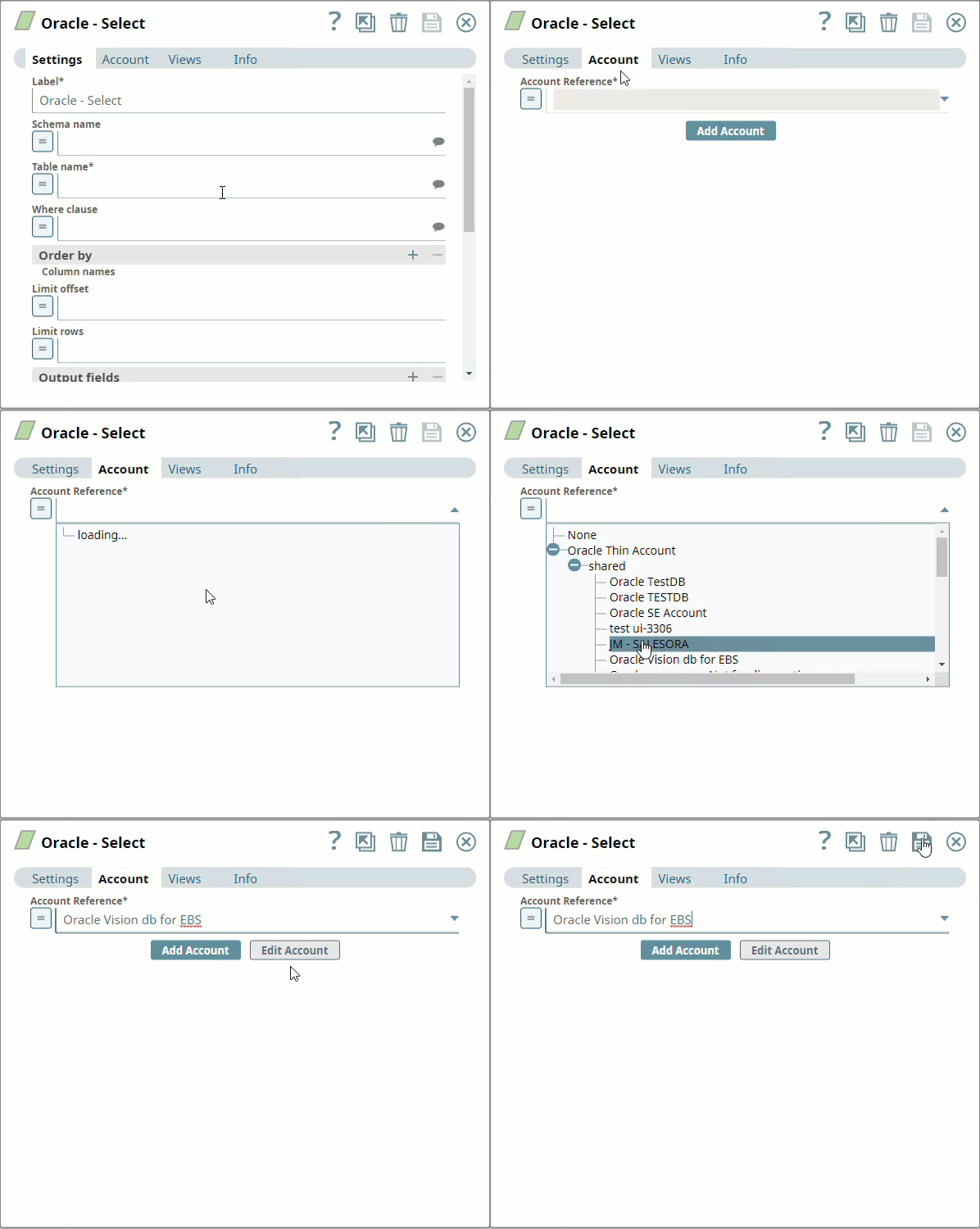
Drag an Oracle Snap to the Canvas and click the Snap to open its settings. Click the Account tab. You can now either use an existing account or create a new one.
- Click the
 icon to view the accounts to which you have access and select the account to use.
 - Click
 .
. 
Configuring a new account
- Click Add Account in the Account Reference dialog.
- Select the Location to create the account, select the account type, and click Continue. The Add Account dialog associated with the account type appears.
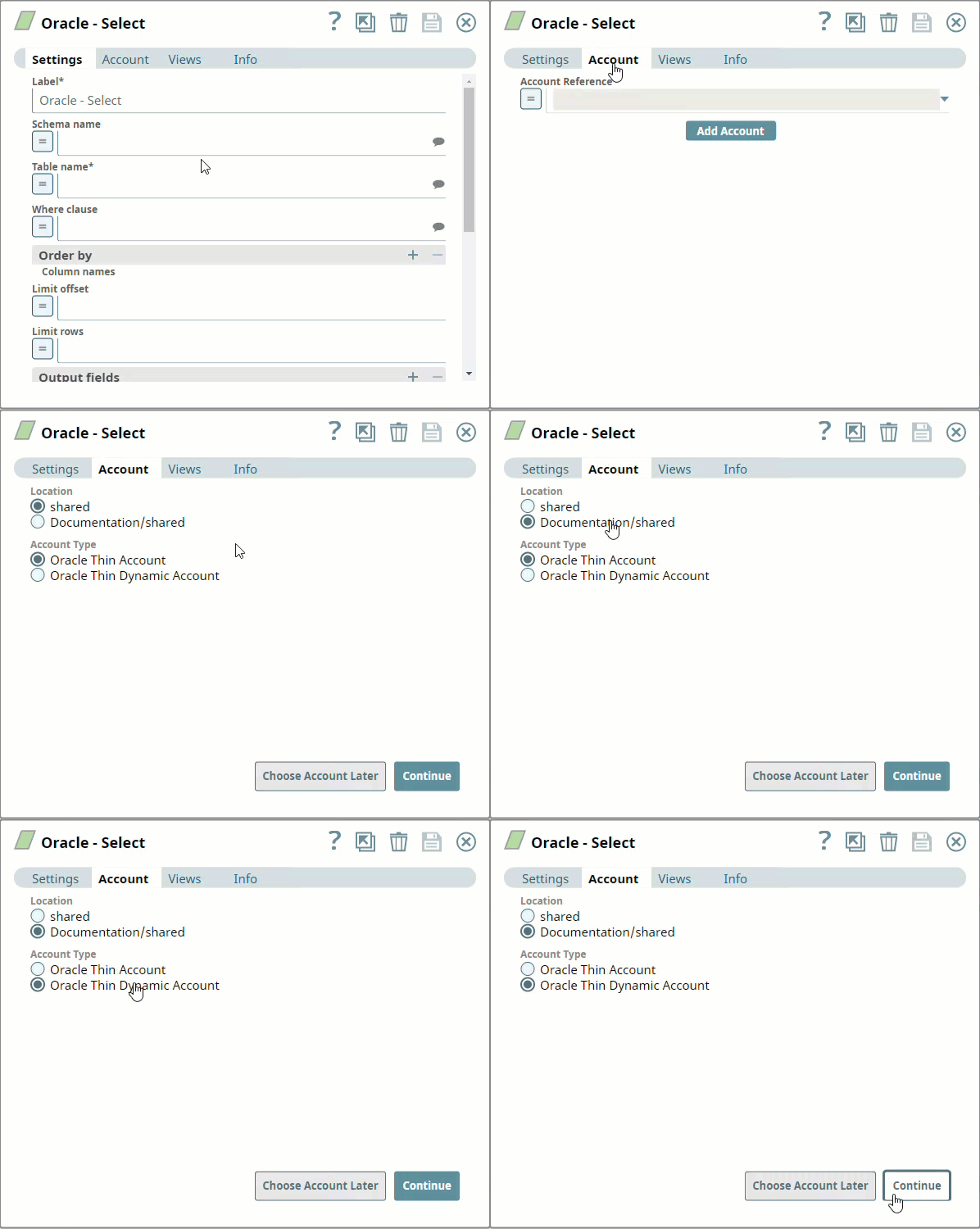
- Enter the required account details. For detailed guidance to configure each account type, click the following links:
Best Practice
Enter additional information on this account in the Notes field of the Info tab to guide other users of this account, especially if there are multiple accounts of the same type.
- Click Validate to verify the account, if the account type supports validation.
- Click Apply to complete configuring the Oracle account.
Using SnapLogic Manager
Use Manager to create accounts without associating them immediately with specific SnapLogic Pipelines.
Accounts in SnapLogic are associated with projects. You can use accounts created in other projects only if you have at least Read access to them.
In the left pane, browse to the project in which you want to create the account and click Create > Account > Orcle, followed by the appropriate account type.
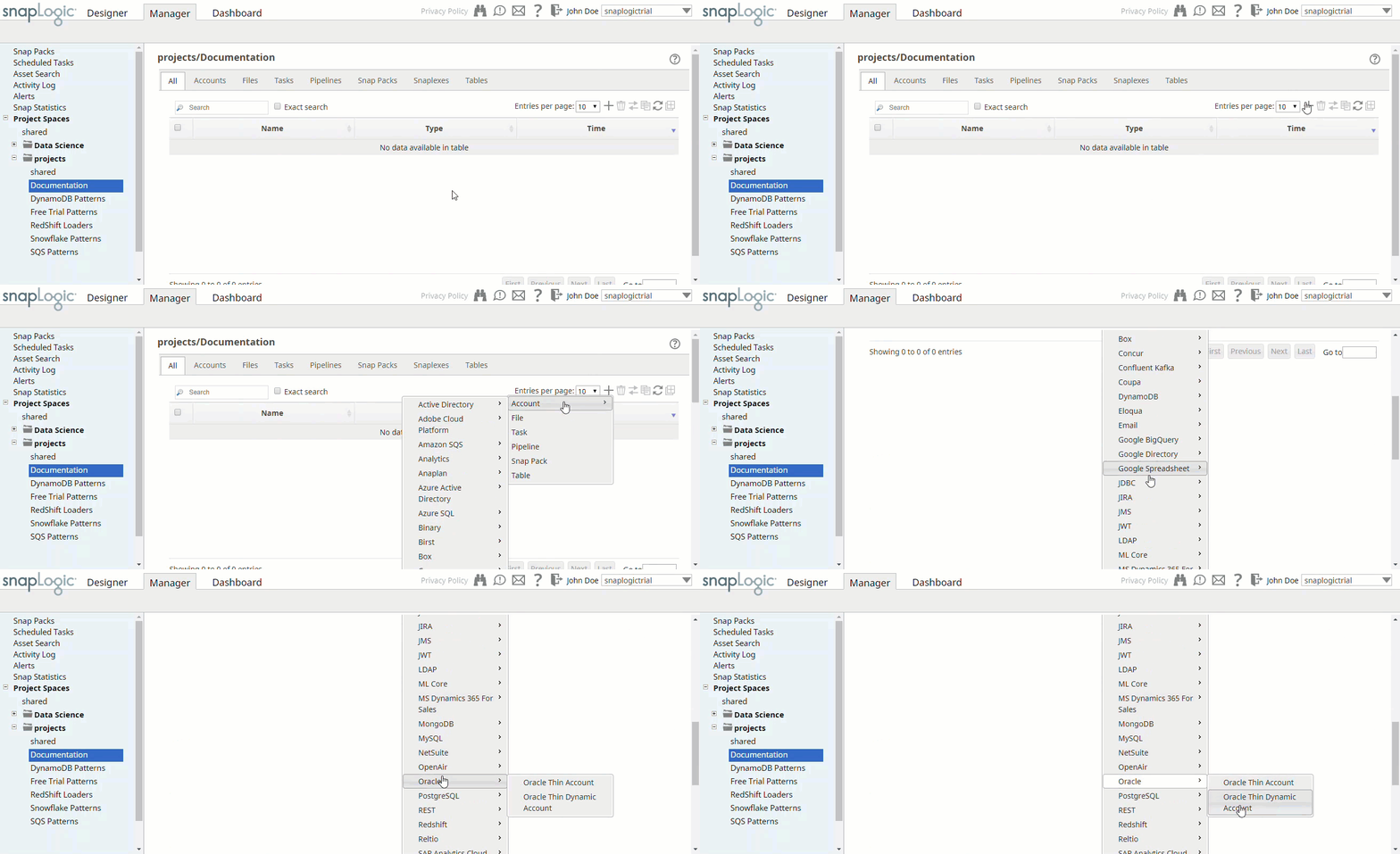
The Create Account dialog associated with the selected account type appears.
Repeat the steps numbered 3 through 5 in Configuring Oracle Accounts#Configuring a new account above.
Avoid updating account credentials while Pipelines using that account are executing. This may lead to unexpected results, including locking your account in SnapLogic.
| Release | Snap Pack Version | Date | Type | Updates |
|---|---|---|---|---|
| November 2024 | 439patches29008 | Latest | Fixed an issue with Oracle Execute, Select, and Stored Procedure Snaps where the data was displayed in an unexpected structure and without the actual row address value when querying table columns of | |
| November 2024 | main29029 | Stable | Updated and certified against the current SnapLogic Platform release. | |
| August 2024 | 438patches27870 | Latest | Fixed an issue with the Oracle - Merge Snap that caused a date format error when the merge condition was used with the TO_DATE() function. | |
| August 2024 | main27765 | Stable |
| |
| May 2024 | 437patches26651 | Latest |
| |
| May 2024 | 437patches26346 | Latest | Fixed an issue with the Oracle - Execute Snap that displayed an error when handling | |
| May 2024 | main26341 | Stable | Updated the Delete Condition (Truncates a Table if empty) field in the Oracle - Delete Snap to Delete condition (deletes all records from a table if left blank) to indicate that all entries will be deleted from the table when this field is blank, but no truncate operation is performed. | |
| February 2024 | 436patches26208 | Latest | Fixed an issue with Oracle - Bulk Load Snap that intermittently displayed a | |
| February 2024 | 436patches25696 | Latest |
Behavior Change: As part of | |
| February 2024 | main25112 | Stable | Updated and certified against the current SnapLogic Platform release. | |
| November 2023 | 435patches24769 | Latest | Fixed an issue with the Oracle Snap Pack that required the i18n extensions to be present when the Oracle database instance was in a specific language. | |
| November 2023 | 435patches24445 | Latest |
| |
| November 2023 | 435patches23823 | Latest |
| |
| November 2023 | main23721 |
| Stable | Updated and certified against the current SnapLogic Platform release. |
| August 2023 | 434patches23000 | Latest | The JDBC driver for the Oracle Snap Pack is upgraded from OJDBC6 JAR (v11.2.0.4) to OJDBC10 JAR (v19.20.0.0) in the latest distribution in October 2023 and will be deployed to the stable distribution in the November 2023 release (after the Snaplex upgrade). This upgrade changes specific error codes and status messages. The latest JDBC driver upgrade is backward-compatible. Learn more: Upgrading from Oracle JDBC 11.2.0.4 Driver to 19.20.0.0 Driver. | |
| August 2023 | 434patches22787 | Latest | Fixed an issue with the Oracle-Bulk Load Snap that was not resilient to the errors previously when trying to auto-discover the existing SQLLDR utility paths in the node. The Snap is now robust to those errors. | |
August 2023 | main22460 | | Stable | The Oracle - Execute Snap now includes a new Query type field. When Auto is selected, the Snap tries to determine the query type automatically. |
May 2023 | main21015 | Stable | Upgraded with the latest SnapLogic Platform release. | |
| February 2023 | main19844 | Stable | Upgraded with the latest SnapLogic Platform release. | |
November 2022 | 431patches19781 | Latest | The Oracle-Stored Procedure Snap works as expected and does not fail with the error | |
November 2022 | 431patches19275 | Latest | The Oracle - Stored Procedure Snap now supports stored functions with OUT and INOUT parameters and displays these parameter values in the output along with the | |
| November 2022 | main18944 | Stable | The Oracle Insert Snap now creates the target table only from the table metadata of the second input view when the following conditions are met:
| |
| September 2022 | 430patches17894 | Latest | The Oracle Select Snap now work as expected when the table name is dependent on an upstream input. | |
| August 2022 | 430patches17658 | Latest | The Oracle - Stored Procedure Snap now takes lesser time to execute when calling a stored procedure, because the Snap queries the metadata as required, thereby optimizing the Snap's performance. | |
| August 2022 | main17386 | Stable |
| |
| 4.29 Patch | 429patches16603 | Latest |
| |
4.29 | main15993 |
| Stable | Upgraded with the latest SnapLogic Platform release. |
| 4.28 | main14627 | Stable |
| |
| 4.27 | main12833 | Stable |
| |
| 4.26 | main11181 | Stable | Upgraded with the latest SnapLogic Platform release. | |
| 4.25 | 425patches11008 | Latest |
| |
| 4.25 | main9554 | Stable | Upgraded with the latest SnapLogic Platform release. | |
| 4.24 | main8556 | Stable |
| |
| 4.23 | main7430 | Stable | Upgraded with the latest SnapLogic Platform release. | |
| 4.22 | main6403 | Stable | Upgraded with the latest SnapLogic Platform release. | |
| 4.21 Patch | 421patches6272 | Latest | Fixes the issue where Snowflake SCD2 Snap generates two output documents despite no changes to Cause-historization fields with DATE, TIME and TIMESTAMP Snowflake data types, and with Ignore unchanged rows field selected. | |
| 4.21 Patch | 421patches6144 | Latest | Fixes the following issues with DB Snaps:
| |
| 4.21 Patch | MULTIPLE8841 | Latest | Fixes the connection issue in Database Snaps by detecting and closing open connections after the Snap execution ends. | |
| 4.21 | snapsmrc542 |
| Stable | Updated the Oracle Thin Account and Oracle Thin Dynamic Account, enabling them to connect via Oracle Active Data Guard (ADG). |
4.20 Patch | db/oracle8812 | Latest | Enhances the Oracle Snap Pack to support connections to the Oracle ADG (Active Data Guard) URL. | |
4.20 Patch | db/oracle8803 | Latest | Support for Oracle Database 19c. | |
| 4.20 | snapsmrc535 | Stable | Upgraded with the latest SnapLogic Platform release. | |
| 4.19 Patch | db/oracle8408 | Latest | Fixes an issue with the Oracle - Update Snap wherein the Snap is unable to perform operations when:
| |
| 4.19 | snaprsmrc528 | Stable | Upgraded with the latest SnapLogic Platform release. | |
| 4.18 Patch | oracle7786 | Latest | Fixes an issue using the NVARCHAR2 datatype in Oracle databases when the character set is not AL32UTF8. However, a known issue is that special characters display as | |
| 4.18 | snapsmrc523 | Stable | Upgraded with the latest SnapLogic Platform release. | |
| 4.17 Patch | db/oracle7459 | Latest | Fixed an issue with the Oracle Stored Procedure Snap wherein the Pipeline execution fails with an error when the input data type is CLOB. | |
| 4.17 | ALL7402 | Latest | Pushed automatic rebuild of the latest version of each Snap Pack to SnapLogic UAT and Elastic servers. | |
| 4.17 | snapsmrc515 | Latest |
| |
4.16 Patch | db/oracle6919 | Latest | Added a new property, Session parameters, in the Oracle Insert Snap to enable the use of National Language Support (NLS) parameters. | |
4.16 Patch | db/oracle6824 | Latest | Fixed an issue with the Lookup Snap passing data simultaneously to output and error views when some values contained spaces at the end. | |
| 4.16 | snapsmrc508 | Stable | Upgraded with the latest SnapLogic Platform release. | |
| 4.15 Patch | db/oracle6534 | Latest | Improved performance in Pipelines that contain child Pipelines. | |
| 4.15 Patch | db/oracle6417 | Latest | Fixed an issue with data types conversion. All fields with byte, short, int, or long data types will be converted to BigInteger after fetching. | |
| 4.15 Patch | db/oracle6284 | Latest | Replaced the existing Max idle time and Idle connection test period properties with Max life time and Idle Timeout properties respectively, in the Account configuration. The new properties fix the connection release issues that were occurring due to default/restricted DB Account settings. | |
| 4.15 | snapsmrc500 | Stable | Upgraded with the latest SnapLogic Platform release. | |
| 4.14 | snapsmrc490 | Stable | Upgraded with the latest SnapLogic Platform release. | |
4.13 Patch | db/oracle5192 | Latest |
| |
| 4.13 | snapsmrc486 | Stable | Upgraded with the latest SnapLogic Platform release. | |
| 4.12 Patch | oracle4862 | Latest | Fixed an issue in the Oracle Bulk Load Snap that fails to execute the SQLLDR (SQL Loader) command, while also enhancing the support for the TCPS protocol. | |
| 4.12 Patch | db/oracle4721 | Latest | Added a property, "SSL/TCPS" for Oracle Account. | |
| 4.12 Patch | MULTIPLE4744 | Latest | Enabled expression for Delete Condition in Oracle Delete Snap. | |
| 4.12 | snapsmrc480 | Stable | Upgraded with the latest SnapLogic Platform release. | |
4.11 Patch | db/oracle4369 | Latest | Enhanced the Oracle Bulk Load Snap to accept date-type values in the format "yyyy-mm-dd". | |
| 4.11 | snapsmrc465 | Stable | Upgraded with the latest SnapLogic Platform release. | |
| 4.10 Patch | oracle3633 | Latest | Fixed BULK LOAD so it adds the thread name to the name of the temporary directory. This allows multiple BULK LOAD Snaps within a single pipeline. | |
| 4.10 | snapsmrc414 | Stable | Added Auto commit property to the Select and Execute Snaps at the Snap level to support overriding of the Auto commit property at the Account level. | |
4.9.0 Patch | oracle3188 | Latest | Fixed the issue that "NaN" check was done to unexpected data types like varchar. | |
4.9.0 Patch | oracle3096 | Latest | Fixed a class casting issue for custom data types(BLOB, CLOB, NCLOB, etc) when custom Oracle JDBC driver is used. | |
4.9.0 Patch | oracle3071 | Latest | Fixed an issue regarding connection not closed after login failure; Expose autocommit for "Select into" statement in PostgreSQL Execute Snap and Redshift Execute Snap. | |
| 4.9 | snapsmrc405 | Stable | Upgraded with the latest SnapLogic Platform release. | |
4.8.0 Patch | oracle2905 |
| Latest | Fix for SQL*Loader interpreting white-space only data as null values. |
4.8.0 Patch | oracle2756 | Latest | Potential fix for JDBC deadlock issue. | |
4.8.0 Patch | oracle2711 | Latest | Fixed Oracle Snap Pack rendering dates that are one hour off from the date returned by database query for non-UTC Snaplexes. | |
| 4.8 | snapsmrc398 | Stable | Database accounts now invalidate connection pools if account properties are modified and login attempts fail. | |
4.7.0 Patch | oracle2190 | Latest | Fixed an issue with the Oracle Select Snap regarding Limit rows not supporting an empty string from a pipeline parameter. | |
| 4.7 | snapsmrc382 | Stable |
| |
| 4.6 | snapsmrc362 | Stable |
| |
| 4.5.1 | oracle1583 | Stable |
| |
| 4.4.1 | NA | Stable |
| |
| 4.4 | NA | Stable |
| |
| 4.3.2 | NA | Stable |
| |
| NA | NA | Stable |
| |
| NA | NA | Stable |
| |
| NA | NA | Stable |
|
 .
.Have feedback? Email documentation@snaplogic.com | Ask a question in the SnapLogic Community
© 2017-2024 SnapLogic, Inc.