
Redshift - Select
- Kalpana Malladi
- Aparna Tayi (Unlicensed)
- Gouri Bhagchandani (Deactivated)
On this Page
Snap type | Read | |||||||
|---|---|---|---|---|---|---|---|---|
Description | This Snap allows you to fetch data from a database by providing a table name and configuring the connection. The Snap produces the records from the database on its output view which can then be processed by a downstream Snap. ETL Transformations & Data FlowThis Snap enables the following ETL operations: Fetch data from an existing Redshift table using the user configuration, and feed it to downstream Snaps. JSON paths can be used in a query and will have values from an incoming document substituted into the query. However, documents missing values for a given JSON path will be written to the Snap's error view. After a query is executed, the query's results are merged into the incoming document overwriting any existing keys' values. The original document is output if there are no results from the query.
SELECT * FROM [table] WHERE [where clause] ORDER BY [ordering] LIMIT [limit] OFFSET [offset]
Input & Output
| |||||||
| Limitations and Known Issues: | If you use the PostgreSQL driver ( | |||||||
| Prerequisites | None. | |||||||
| Support for Ultra Pipelines | Works in Ultra Tasks. | |||||||
| Behavior Change | Starting with
As of the March 2023 release, in the Redshift Select Snap, when you configure Output fields and deselect the Match data types checkbox, the display of the label name for the timestamptz data type in the output preview varies with the Redshift JDBC and the PostgreSQL JDBC drivers. For the Redshift JDBC driver, the Snap prefixes Redshift to the Timestamp label. For the PostgreSQL JDBC driver, Snap displays the labels as configured in the Snap settings. This does not impact the performance of the Snap. | |||||||
Configurations | Account and Access This Snap uses account references created on the Accounts page of SnapLogic Manager to handle access to this endpoint. See Redshift Account for information on setting up this type of account. Views
| |||||||
Settings | ||||||||
Label | Required The name for the Snap. You can modify this to be more specific, especially if you have more than one of the same Snap in your pipeline. | |||||||
Schema name | The database schema name. Selecting a schema filters the Table name list to show only those tables within the selected schema. The property is suggestible and will retrieve available database schemas during suggest values. | |||||||
Table name | Required Name of table to execute insert on Example: people | |||||||
Where clause | Where clause of select statement. This supports document value substitution (such as $person.firstname will be substituted with the value found in the incoming document at the path). However, you may not use a value substitution after "IS" or "is" word. Please see the examples below: Examples:
| |||||||
Order by: Column names | Enter in the columns in the order in which you want to order by. The default database sort order will be used. Example: name | |||||||
Limit offset | Starting row for the query. | |||||||
Limit rows | Number of rows to return from the query. Default value: [None] | |||||||
Output fields | Enter or select output field names for SQL SELECT statement. To select all fields, leave it at default. Example: email, address, first, last, etc. Default value: [None] | |||||||
| Fetch Output Fields In Schema | Select this check box to include only the selected fields or columns in the Output Schema (second output view). If you do not provide any Output fields, all the columns are visible in the output. Default value: Not selected | |||||||
Pass through | If checked, the input document will be passed through to the output view under the key 'original'. Default value: Selected | |||||||
Ignore empty result | If selected, no document will be written to the output view when a SELECT operation does not produce any result. If this property is not selected and the Pass through property is selected, the input document will be passed through to the output view. Default value: Not selected | |||||||
| Auto commit | Select one of the options for this property to override the state of the Auto commit property on the account. The Auto commit at the Snap-level has three values: True, False, and Use account setting. The expected functionality for these modes are:
Default value: False | |||||||
| Number of retries | Specifies the maximum number of attempts to be made to receive a response. The request is terminated if the attempts do not result in a response. If the value is larger than 0, the Snap first downloads the target file into a temporary local file. If any error occurs during the download, the Snap waits for the time specified in the Retry interval and attempts to download the file again from the beginning. When the download is successful, the Snap streams the data from the temporary file to the downstream Pipeline. All temporary local files are deleted when they are no longer needed. Ensure that the local drive has sufficient free disk space to store the temporary local file. Example: 3 Default value: 0 | |||||||
| Retry interval (seconds) | Specifies the time interval between two successive retry requests. A retry happens only when the previous attempt resulted in an exception. Example: 10 Default value: 1 | |||||||
| Match data types | Conditional. This property applies only when the Output fields property is provided with any field value(s). If this property is selected, the Snap tries to match the output data types same as when the Output fields property is empty (SELECT * FROM ...). The output preview would be in the same format as the one when SELECT * FROM is implied and all the contents of the table are displayed. Default value: Not selected | |||||||
| Staging mode | Required when the value in the Number of retries field is greater than 0. Specify the location from the following options to store input documents between retries:
| |||||||
Snap Execution Default Value: Validate & Execute | Select an option to specify how the Snap must be executed. Available options are:
| |||||||
For the 'Suggest' in the Order by columns and the Output fields properties, the value of the Table name property should be an actual table name instead of an expression. If it is an expression, it will display an error message "Could not evaluate accessor: ..." when the 'Suggest' button is clicked. This is because, at the time the "Suggest" button is clicked, the input document is not available for the Snap to evaluate the expression in the Table name property. The input document is available to the Snap only during the preview or execution time.
Troubleshooting
| Error | Reason | Resolution |
|---|---|---|
| This issue occurs due to incompatibilities with the recent upgrade in the Postgres JDBC drivers. | Download the latest 4.1 Amazon Redshift driver here and use this driver in your Redshift Account configuration and retry running the Pipeline. |
Basic Use Case
Following is an example using several of the Redshift properties to select two rows of data from table account in schema public with a where condition clause.
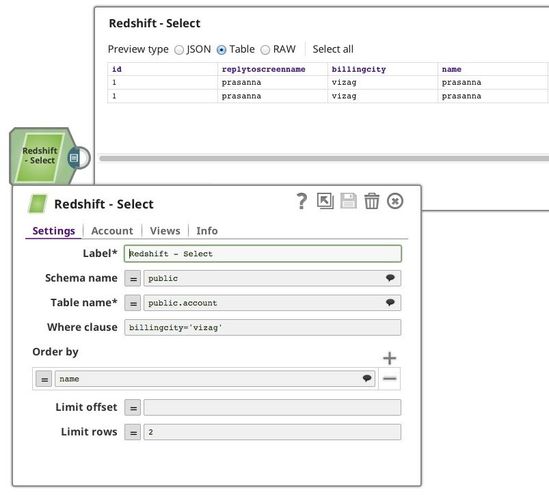
Typical Snap Configurations
The Key configurations for the Snap are:
- Without Expression
- With Expression
Following examples are using the sample data: demo_guest.csv (available in Downloads below). Please use the Redshift Bulk Load to load the file into the Redshift instance or create a table using:
CREATE TABLE "public"."demo_guest" ( id varchar(20), name varchar(20), inst_dt timestamp )
The pipeline can be found here: redshift-select_2017_06_12.slp (available in Downloads below)
Without Expressions: Select a table with WHERE condition and show the results in order. The configuration below is equivalent to the Query:
SELECT * FROM "public"."demo_guest" WHERE "name" = 'Tom' ORDER BY "inst_dt";
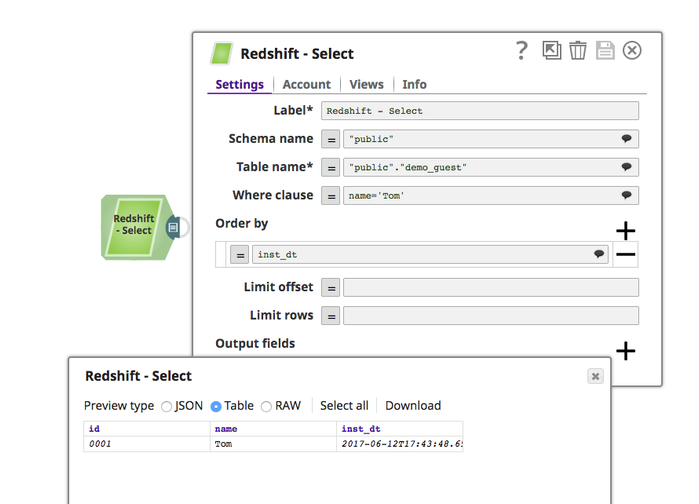
- With Expressions:
- Query statement from the upstream
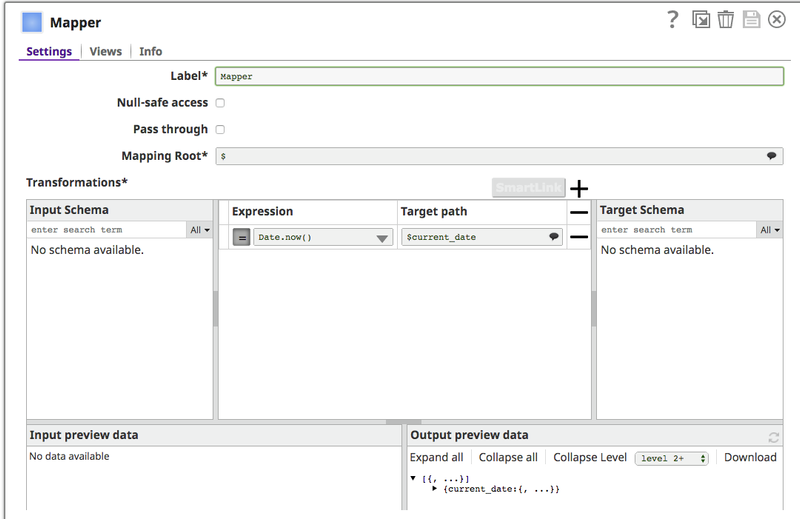
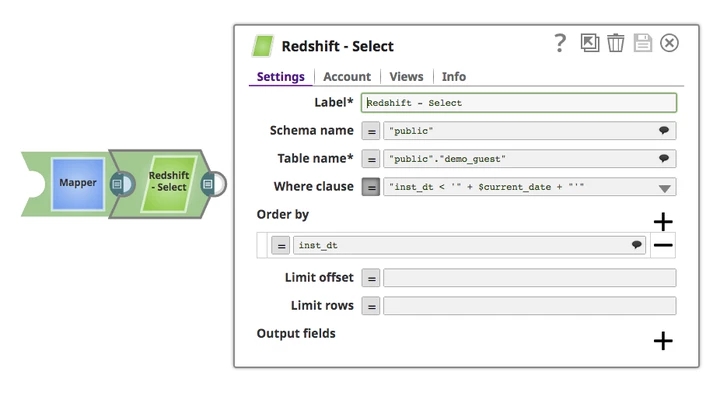
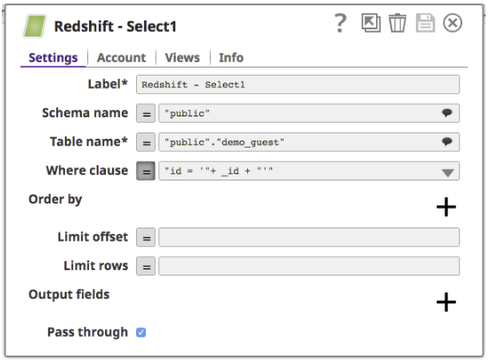
Query a table according to the input document. The Mapper Snap connects to the Snap and provides the needed upstream input document to the Redshift Select Snap.
The Mapper configuration:
- Redshift Select Snap configuration:
- Pipeline Parameter
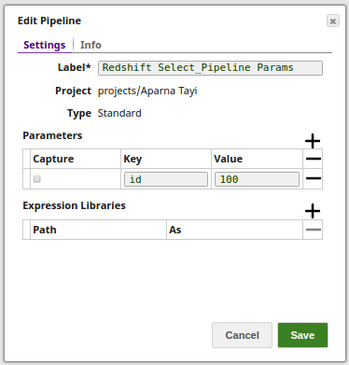
Query a table according to the pipeline parameter. The following example pipeline used the 'id' defined in pipeline parameter to query the table.
Advanced Use Case
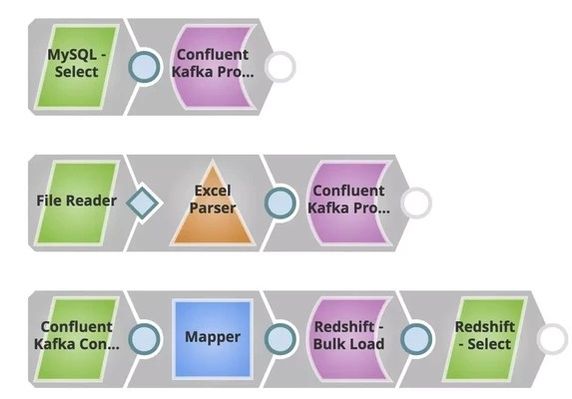
The following describes a pipeline, with a broader business logic involving multiple ETL transformations. The use case can be moving data from on-prem to cloud. Following is the sample pipeline.
In this example, the goal is to move all account data from on-prem instances to Redshift CDW so users can run analytics on top of this. Files (account details) stored in MySQL (producer) are pushed to a particular topic in Confluent Kafka, File reader reads another file (account/leads) and is pushed to the same topic. Consumer can consume from the same topic and later move this to Redshift. Redshift Select can be used to verify the data moved, and then Tableau can consume this for Analytics.
The ETL Transformations
In the pipeline #1:
Extract: The MySQL Select Snap reads the documents from the MySQL Database.
- Load: The Confluent Kafka Producer Snap loads the documents into a topic.
In the pipeline #3:
- Extract: The File Reader Snap reads the records to be be pushed to the Confluent Kafka topic.
- Transform: The Excel Parser Snap parses the records in an .xls format
- Load: The Confluent Kafka Producer Snap loads the .xls documents into a topic.
In the pipeline #3:
- Extract: The Confluent Kafka Consumer Snap reads the documents from the same topic.
- Transform: The Mapper Snap maps the input documents to the Redshift Database
- Load: The Redshift Bulk Load Snap loads the documents into a table.
- Read: The Redshift Select Snap reads the newly loaded documents.
Downloads
Important steps to successfully reuse Pipelines
- Download and import the pipeline into the SnapLogic application.
- Configure Snap accounts as applicable.
- Provide pipeline parameters as applicable.
Snap Pack History
Have feedback? Email documentation@snaplogic.com | Ask a question in the SnapLogic Community
© 2017-2025 SnapLogic, Inc.